
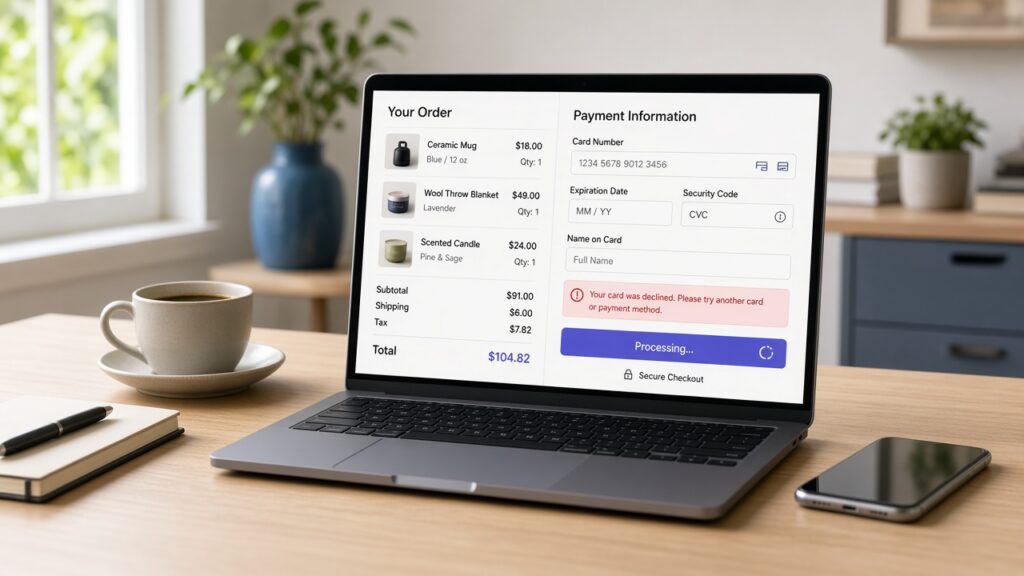
A store owner messages me in a panic: customers are adding products to the cart, but nobody can finish paying. The Place Order button spins forever, the page reloads with no message, or the payment step simply throws an error. When woocommerce checkout not working is the problem, every hour costs real sales, and the store owner usually only hears about it from an annoyed customer.
I build and maintain WooCommerce stores from Surat for clients in India and abroad, and checkout failures are one of the most urgent jobs I get. Below is how I find out why the checkout broke, the order I fix things in, and the checks I run so it does not quietly break again after the next update.
Why woocommerce checkout not working happens
Checkout is the busiest page on a store. It depends on the theme, the cart, shipping rules, tax settings, the payment gateway, JavaScript, sessions, and caching all working together. When one of them fails, the symptom usually falls into one of these patterns:
- The Place Order button spins and nothing happens
- The page reloads and the cart is suddenly empty
- A payment gateway error appears, or the card form never loads
- Shipping methods or the total do not update when the address changes
- The order goes through for the customer, but no order or email shows up in wp-admin
A spinning button almost always points to a JavaScript or AJAX error. An emptied cart points to sessions or caching. A gateway error points to API keys, webhooks, or currency settings. Sorting the symptom of woocommerce checkout not working first stops me from disabling half the plugins on a live store at random.
Quick checks when woocommerce checkout not working is reported
- Place a test order myself in a private window, as a guest and as a logged-in customer
- Open the browser console and the Network tab and watch what fails when I click Place Order
- Check WooCommerce → Status for template overrides, outdated files, and missing pages
- Read the latest entries under WooCommerce → Status → Logs, especially for the payment gateway
- Write down the last change: plugin or theme update, new cache or CDN, new gateway, or a hosting move
- Confirm a fresh backup exists before I change anything on the live store
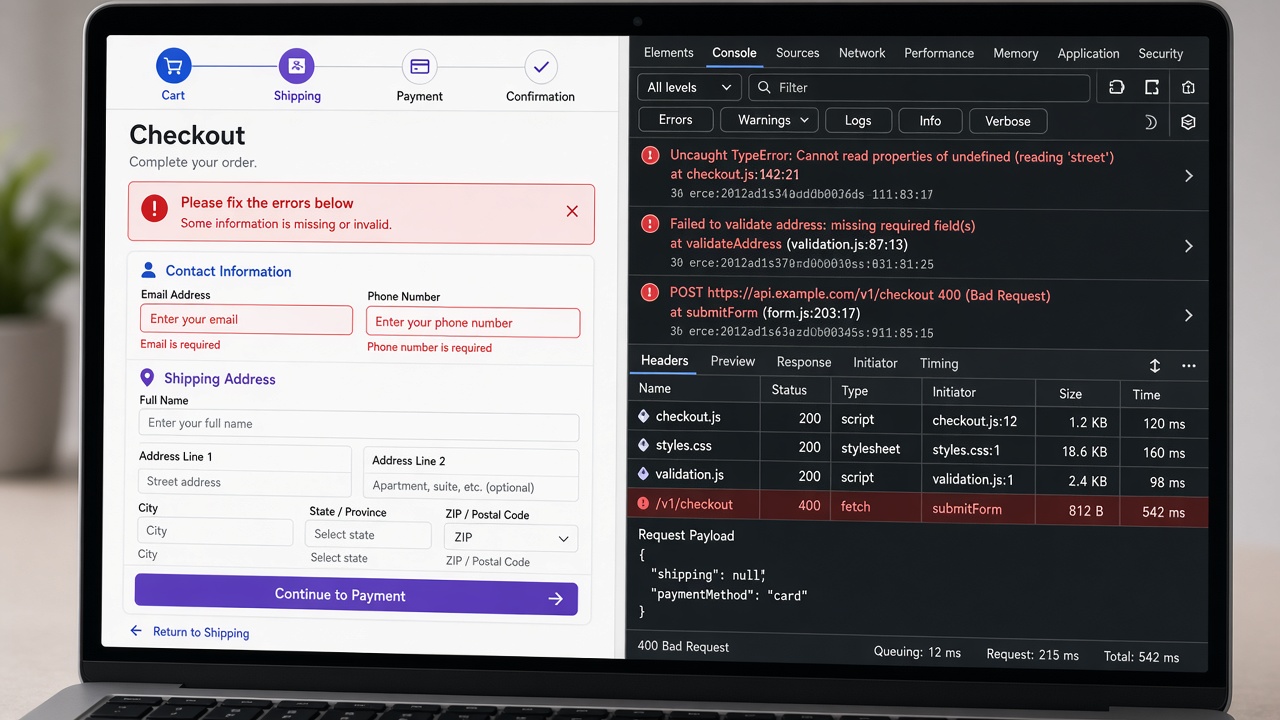
Most of the time the console or the gateway log tells me the answer within a few minutes. A red error like Uncaught TypeError or a failed ?wc-ajax=checkout request is far more useful than any guess.
How I fix woocommerce checkout not working step by step
I work from the safest, cheapest fix to the deepest one, and I place a test order after every step so I know exactly which change solved it.
1. Exclude cart, checkout and account pages from caching
Page caching is the most common cause of woocommerce checkout not working that I see. If the checkout page or its fragments are served from cache, customers get someone else’s session or an expired security nonce, and the order fails or the cart empties. I make sure the cache plugin, the host cache, and any CDN skip the cart, checkout, and my-account pages and the WooCommerce cookies, then purge every cache layer and test again.
2. Test the payment gateway on its own
Next I look at the gateway. I confirm the live and test API keys are in the right fields, the webhook URL is registered and receiving events, the store currency is supported, and the SSL certificate is valid. Expired keys, a webhook pointing at an old domain after a migration, or a gateway plugin that is several versions behind will all stop payments and leave the woocommerce checkout not working for every customer. If the gateway offers a test or sandbox mode, I run one order through it before switching back to live.
3. Find the plugin or theme conflict
If the console shows a JavaScript error behind the woocommerce checkout not working, I switch to a staging copy and deactivate plugins one at a time, then try a default theme like Storefront. Checkout field editors, upsell popups, optimisation plugins that defer or combine scripts, and outdated theme templates are frequent culprits. It is the same careful process I use to debug a WordPress plugin conflict, just focused on the checkout page. WooCommerce’s own self-service troubleshooting guide follows a similar conflict test.
4. Turn on debugging and read the errors
When the cause is still hidden, I enable WP_DEBUG and WP_DEBUG_LOG on staging, as described in the WordPress guide to debugging in WordPress, and place another test order. PHP fatal errors, memory limits, or a failed request to the payment provider usually show up in debug.log straight away. I never leave debug display on for visitors on a live store.
5. Check shipping, tax and checkout settings
Sometimes woocommerce checkout not working simply means the store cannot calculate a valid total. A shipping zone with no method for the customer’s country, a broken tax rate, or a required checkout field that a plugin hid can all block the order. I test with a few real addresses, including an international one if the store ships abroad, and make sure every zone returns at least one shipping option.
When orders go through but emails do not arrive
Sometimes the checkout works, but the store owner reports woocommerce checkout not working because new order emails never arrive and customers do not get a receipt. That is usually a mail delivery problem, not a checkout bug. I set up proper SMTP sending and check the order email settings, the same way I fix a WordPress form that is not sending email. I also confirm the orders are actually in WooCommerce → Orders and not stuck as pending or failed payments.
How I test after the fix
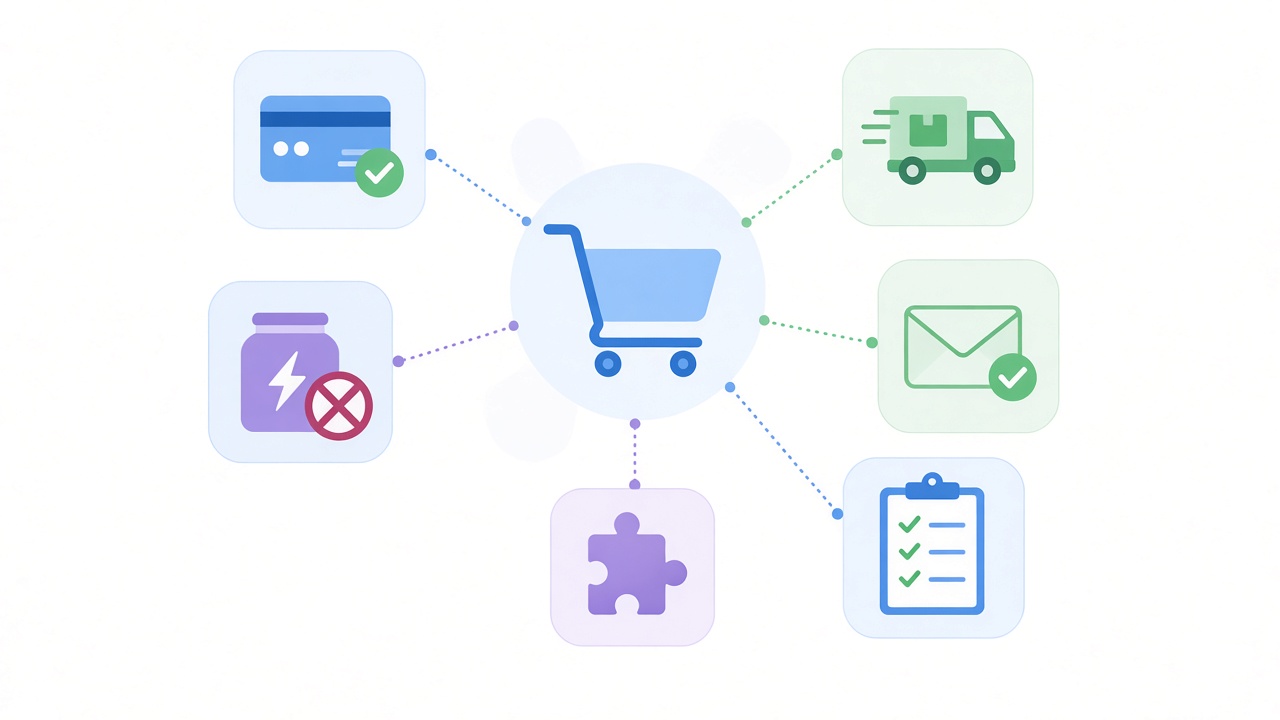
- Place real test orders as a guest and as a logged-in customer, on desktop and on a phone
- Try every active payment method, including cash on delivery or bank transfer if enabled
- Check that the order appears in wp-admin with the right status and totals
- Confirm the customer receipt and the admin new order email both arrive
- Refund or cancel the test orders so they do not affect reports or stock
How I stop woocommerce checkout not working from coming back
- Test WooCommerce, gateway, and theme updates on staging before they reach the live store
- Keep cart, checkout, and account pages permanently excluded from every cache layer, as in my WooCommerce launch checklist
- Review the WooCommerce Status page after each major update for outdated template overrides
- Place one quick test order every week, or after any change to plugins, hosting, or the CDN
- Keep regular backups so a bad update can be rolled back in minutes
A checkout failure feels like the whole store is down, but the cause is usually one broken link in the chain: a cache rule, a gateway setting, or a script conflict. If you are dealing with woocommerce checkout not working on your own store and want someone who fixes this regularly, take a look at my WooCommerce development service, email me at rnitinb@gmail.com, or use the contact page. I am happy to find the cause, fix it safely, and get your orders coming in again.