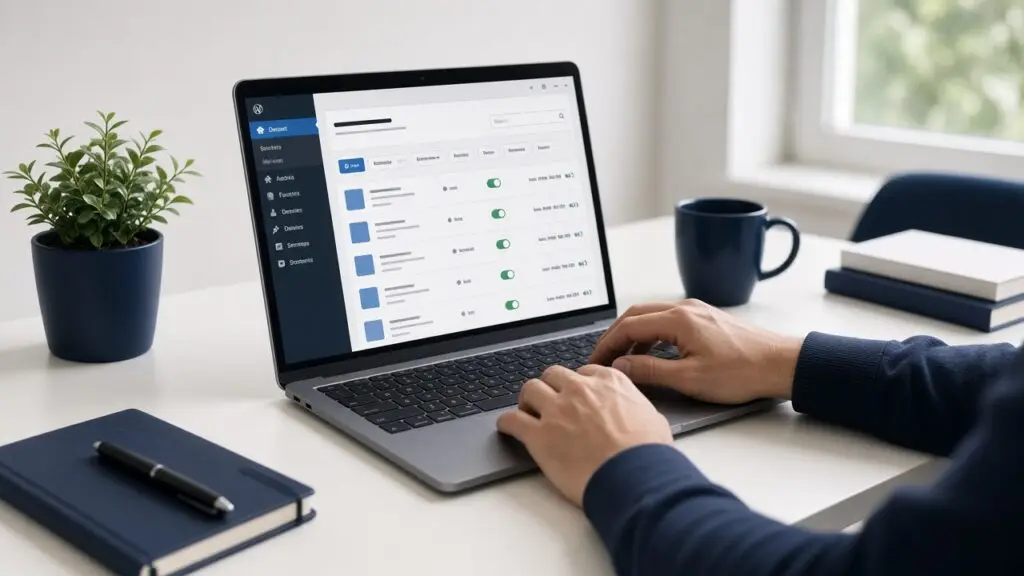
A wordpress plugin conflict rarely announces itself with a clear error. More often a contact form stops sending, checkout freezes on the payment step, or the admin bar throws a blank screen after an update. I see this regularly while maintaining WordPress sites from Surat for businesses and stores. The fix is not random deactivation. It is a calm process that isolates the bad combination without guessing.
Below is how I debug that kind of clash when a site suddenly misbehaves — what signs I trust, how I isolate plugins safely, what I check after I find the pair, and how I keep the next one from catching us off guard.
Signs I treat as a wordpress plugin conflict
Not every bug is a plugin fight. Hosting outages, bad DNS, and theme template errors look different. I treat something as a likely wordpress plugin conflict when:
- A feature that worked yesterday breaks right after a plugin update or a new install
- Only one area fails (forms, cart, admin screens, or a builder) while the rest of the site looks fine
- The issue disappears when I temporarily disable a group of plugins on staging
- The browser console shows JavaScript errors naming two different plugin script files
- PHP error logs mention the same two plugin paths around the same request
If the whole site is simply sluggish, I still check plugins, but I start with the order I use in why a WordPress site feels slow — images, caching, and queries — before assuming two plugins are fighting.
How I isolate the conflicting plugins safely
I almost never run a full deactivate-everything test on a busy live store. Customers should not be my lab. Staging comes first whenever hosting allows a clone.
- Clone the site to staging (or a local copy) with the same PHP version when possible
- Reproduce the bug on staging and write down the exact steps
- Disable caching and any “combine scripts” option so errors are not hidden
- Deactivate half the plugins, retest, then narrow with a binary search
- When one plugin is the switch that turns the bug on or off, re-enable others until I find its partner
- Confirm the pair on staging twice before I touch production
Binary search beats “turn them off one by one” when there are twenty plugins. Ten minutes of method beats an hour of hunches. Official WordPress troubleshooting steps for conflicts are outlined in their FAQ troubleshooting guide; I follow the same spirit, just with staging in front.
What I check after I find the conflict
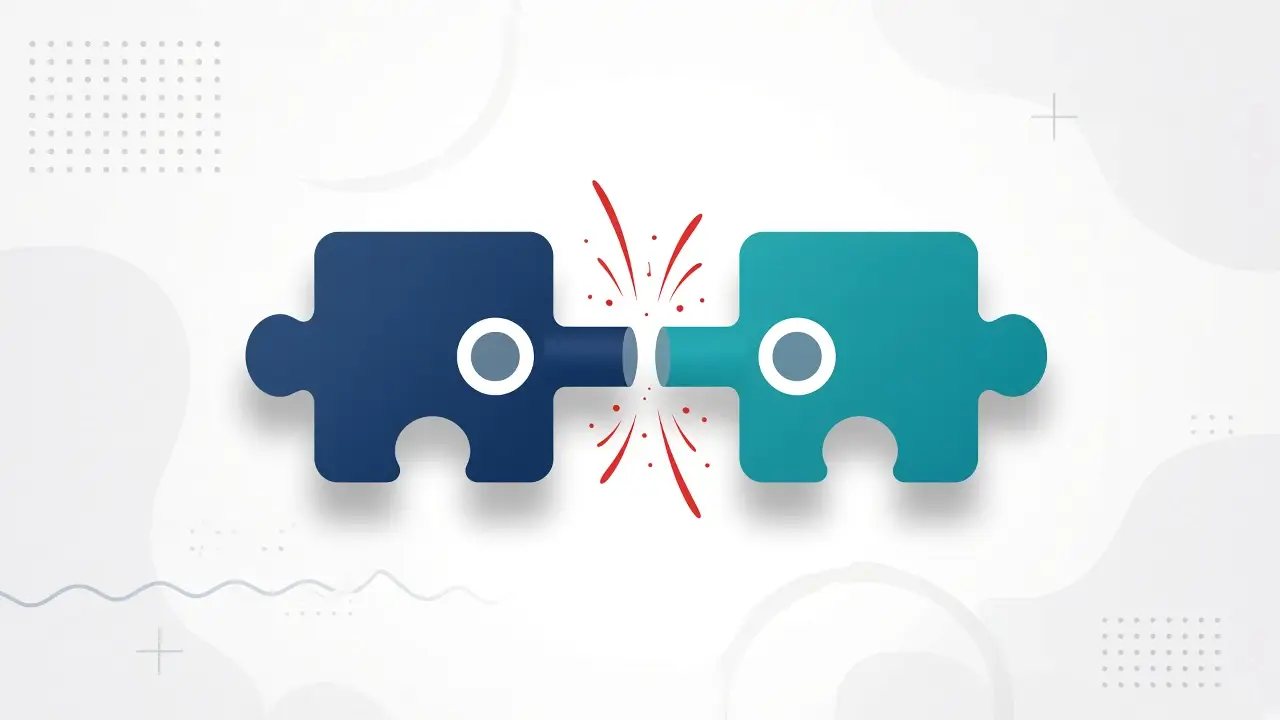
Finding the pair is only half the job. I still need to know how they collide so the fix is not a coin flip.
PHP errors and fatals
I enable WP_DEBUG_LOG on staging (never display errors to visitors) and reload the broken flow. Shared function names, duplicate class definitions, and hooks that expect different argument counts show up here. A fatal that only appears when both plugins are active is gold.
JavaScript console
Many “admin looks broken” and button does nothing” reports are front-end fights: two plugins binding the same jQuery event, or one minifier breaking another plugin’s script. I open DevTools, reproduce the click, and note which file throws first.
Cache, CDN, and optimization layers
The same conflict can look worse when CSS/JS concatenation or a page cache serves a half-updated bundle. After I identify the pair, I purge page cache, object cache, and CDN, then retest logged-out. If the bug only exists with optimization on, the conflict may be load-order or bundling rather than PHP logic.
Fixes that stick
Once I know the conflicting plugins, I pick the smallest durable fix — not the flashiest.
- Update both plugins — many conflicts are already patched in a newer release
- Replace the weaker one — if one plugin is abandoned or overlapping another you already trust, remove it
- Adjust settings turn off a duplicate feature (two SEO modules, two form captchas, two image optimizers)
- Change load order — rarely, deferring a script or changing a priority on a hook separates them cleanly
- Report upstream — when both plugins are actively maintained, a clear staging video and log snippet helps the authors
I avoid editing plugin core files on production. That “fix” dies on the next update. If a site needs a lasting bridge between two tools, a tiny custom mu-plugin or a documented snippet is cleaner than hacking vendor code — the same maintenance mindset I use when I decide between a custom WordPress plugin or an existing one.
For deeper plugin architecture notes, the WordPress Plugin Handbook is still the reference I point clients and junior developers to.

How I prevent the next wordpress plugin conflict
Prevention is quieter than midnight firefighting.
- Keep a short plugin inventory: what each one does and who owns the decision to keep it
- Prefer one solid tool per job instead of three overlapping free plugins
- Update on staging first, especially security plugins, builders, and checkout extensions
- Remove inactive plugins instead of leaving them installed just in case”
- Note PHP version and major plugin versions after every successful update window
When a client wants ongoing updates without drama, that work sits under my WordPress maintenance and security service — backups, careful updates, and a quick check of forms and checkout after each batch.
Quick debugging checklist
- Reproduce the bug and write the steps
- Use staging; avoid live deactivate-all on a busy site
- Binary-search plugins until you have the pair
- Read PHP logs and the browser console
- Purge caches and retest logged-out
- Fix with update, replace, settings, or a small documented bridge — not core hacks
- Record what you learned so the next update is faster
Plugin clashes feel chaotic until you slow down and isolate. If your forms, checkout, or admin broke after an update and you want a second pair of hands, email me at rnitinb@gmail.com or use the contact page — I am happy to dig in on staging and get the site stable again.