
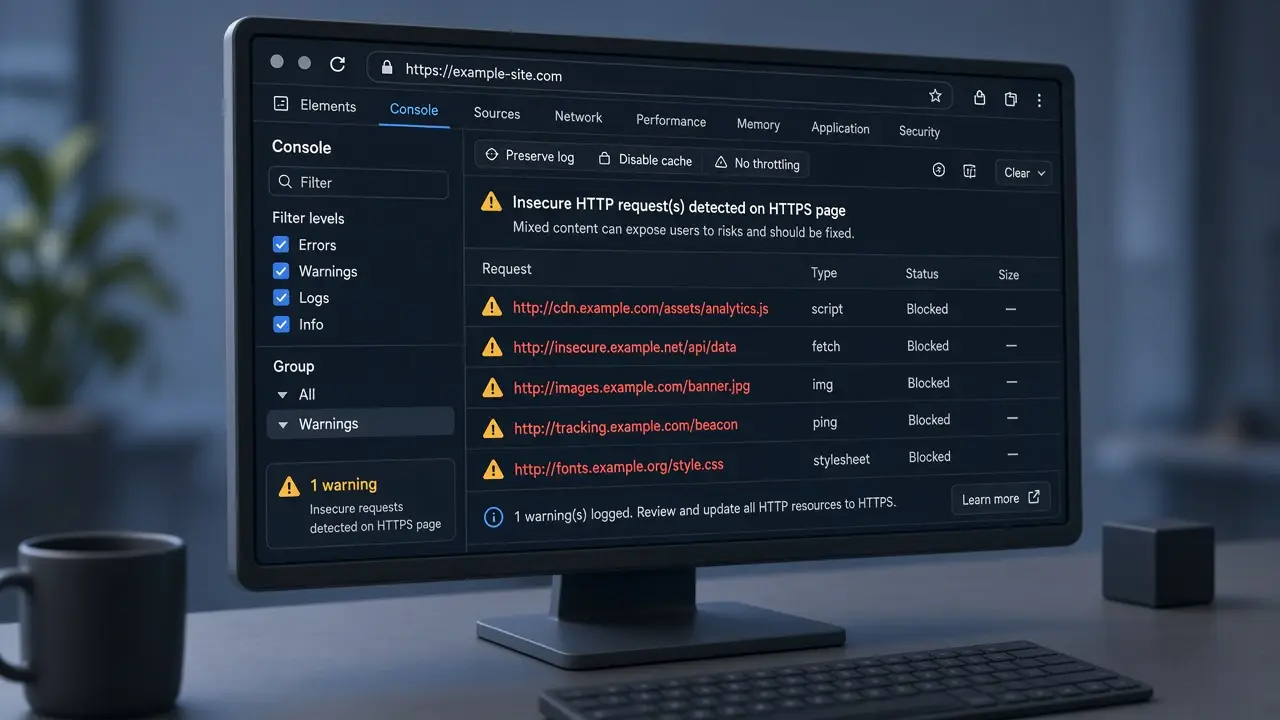
A mixed content WordPress warning shows up when the page itself loads over HTTPS, but something on that page an image, stylesheet, script, or iframe — still arrives over plain HTTP. Browsers block or warn on those insecure requests, so visitors see a broken lock icon, missing images, or a layout that looks half finished. I run into this often after an HTTP-to-HTTPS switch or a migration, while maintaining WordPress sites from Surat for businesses and stores.
Below is the practical process I use: what mixed content is, how I find it, the usual causes, how I fix hardcoded http:// URLs in content and the database, what I watch for in Elementor and the media library, why a cache purge matters, and when I escalate.
What mixed content WordPress problems look like
Mixed content means the browser trusts the HTML document (HTTPS) but does not fully trust every asset that document pulls in. Active mixed content (scripts, iframes, some XHR calls) is usually blocked. Passive mixed content (images, video, audio) may still load with a warning, or get blocked depending on the browser.
On a live site the symptoms are familiar: a Not secure warning on an HTTPS URL, missing images, a blank builder section until cache is cleared, or fonts and icons gone because CSS still points at http://. An SSL checker may pass the certificate and still list insecure URLs. That is different from a missing certificate valid SSL can coexist with leftover HTTP assets.
How I find mixed content on a WordPress site
I do not guess from the lock icon alone. I open the page logged out and gather evidence.
Browser console and Network panel
In Chrome or Firefox I open DevTools, reload with a hard refresh, and read the Console. Mixed content messages name the insecure URL and whether it was blocked or allowed. Then I switch to the Network panel, filter by Img, CSS, or JS, and sort or scan for requests that still start with http://. That list becomes my fix checklist.
MDN’s overview of mixed content is a clear reference for how browsers classify active vs passive requests. I keep that distinction in mind when deciding what must be fixed first — blocked scripts break features; insecure images mainly hurt trust and SEO signals.
Common causes after HTTP to HTTPS or a migration
Most of these issues are leftovers, not a bad certificate.
- Hardcoded
http://in post content Classic Editor posts, widgets, and old HTML blocks often store full image or iframe URLs - Theme or custom CSS background images and
@importrules written years ago with HTTP - Page builder data — Elementor and similar tools store URLs inside their own JSON/meta; a site URL change does not always rewrite every field
- Media library attachment URLs especially after a domain change or when uploads were copied from an HTTP staging site
- Plugin settings — social widgets, maps, old CDN hostnames, or “custom script” boxes pasted with HTTP
- Canonical / site URL mismatch —
siteurlandhomestill on HTTP while the front end redirects to HTTPS
If images vanish entirely after a move, I also follow the checklist from how I fix broken images after a WordPress migration missing files and mixed protocols often show up in the same week.
How I fix mixed content WordPress URLs in content and the database
Once I have a short list of insecure URLs, I fix them in a safe order: Settings first, then content, then builder data, then theme/CSS, then plugins.
- Confirm Settings General uses
https://for both WordPress Address and Site Address - Force HTTPS at the host or with a trusted SSL plugin only after the certificate is valid
- On staging (preferred), run a serialization-aware search-replace from
http://example.comtohttps://example.com - Re-check the same pages in a private window with the console open
- Repeat on production only after staging looks clean
I use WP-CLI search-replace with --dry-run when I have SSH, or a trusted search-replace tool that understands serialized PHP data. That is the cleanest way I know to clear a mixed content WordPress backlog without breaking builder settings. I avoid raw SQL UPDATE across the whole database — that is how Elementor and widget settings get corrupted. WordPress documents HTTPS and site URL changes in their HTTPS for WordPress guide; I treat that as the baseline, then handle builder and media edges the docs cannot see.

Elementor and the media library
Elementor often keeps HTTP URLs inside element settings even after the site URL is correct. After a global replace I open a few heavy pages in the editor, re-save if needed, and regenerate CSS from Elementor → Tools when layouts still look off. In the Media Library I spot-check older attachments: if the file URL still shows http://, the attachment metadata needs the same HTTPS update as post content.
I also watch for third-party embeds (maps, old video players, affiliate banners) that only offer HTTP endpoints. Those need an HTTPS embed, a different provider, or removal you cannot SSL plugin” your way around an insecure third-party script.
Cache purge after the fixes stick
A correct database can still look broken if cache serves yesterdays HTML. After the URL fixes I purge:
- Page cache (for example WP Fastest Cache on sites I maintain)
- Object cache if the host uses Redis or Memcached
- CDN cache when a CDN sits in front of the site
- Browser cache for my own test — hard refresh or a private window
Then I retest logged out. If the console is clean but a speed tool still complains, I check whether optimization plugins are combining old CSS/JS copies. Performance cleanup after SSL work often overlaps with the process on my WordPress speed optimization service.
When I still escalate
Most cases close with Settings, a careful replace, builder CSS regenerate, and a cache purge. I escalate when:
- Insecure requests come from a plugin that hardcodes HTTP and has no setting to change
- A payment, chat, or analytics vendor only serves scripts over HTTP (rare now, but still happens with abandoned tools)
- The host’s reverse proxy terminates SSL incorrectly so WordPress still thinks the site is HTTP
- Serialized data was already damaged by a previous raw SQL replace and needs repair before another pass
In those cases I isolate the plugin on staging, contact the host about HTTPS forwarding headers, or replace the abandoned tool rather than patching core files.
Quick checklist before I call it done
- Reproduce logged out; read Console and Network for
http://assets - Confirm General settings and the certificate both use HTTPS
- Replace HTTPHTTPS with a serialization-safe tool (dry-run first)
- Re-save or regenerate CSS for Elementor (or your builder)
- Spot-check media URLs and theme/custom CSS
- Purge page cache, object cache, and CDN; retest in a private window
- Remove or replace third-party embeds that cannot load over HTTPS
Mixed content looks scary in the address bar, but it is usually a leftover URL problem not a reason to rebuild the whole site. If your lock icon is warning after an SSL install or a migration and you want a second pair of hands, email me at rnitinb@gmail.com or use the contact page. I help with WordPress maintenance and security from Surat, including HTTPS cleanups that leave forms, checkout, and the rest of the site intact.