
A client once messaged me the day after we moved their site: “The pages load, but half the photos are gone.” The homepage still had text and menus. Forms still worked. But every featured image and most in-content photos showed empty boxes or browser broken-image icons. That is the classic broken images wordpress migration problem — and it is more common than people expect.
I am Nitin Rathod, a WordPress developer in Surat. When I migrate a site, I treat media as its own checklist item, not an afterthought. Below is the practical process I use to find what broke, fix URLs safely, and confirm the uploads folder is complete before I call the move done.
Why broken images wordpress migration happens
After a move, WordPress can show content while media still points at the old place. These are the causes I see most often:
Wrong domain still stored in content
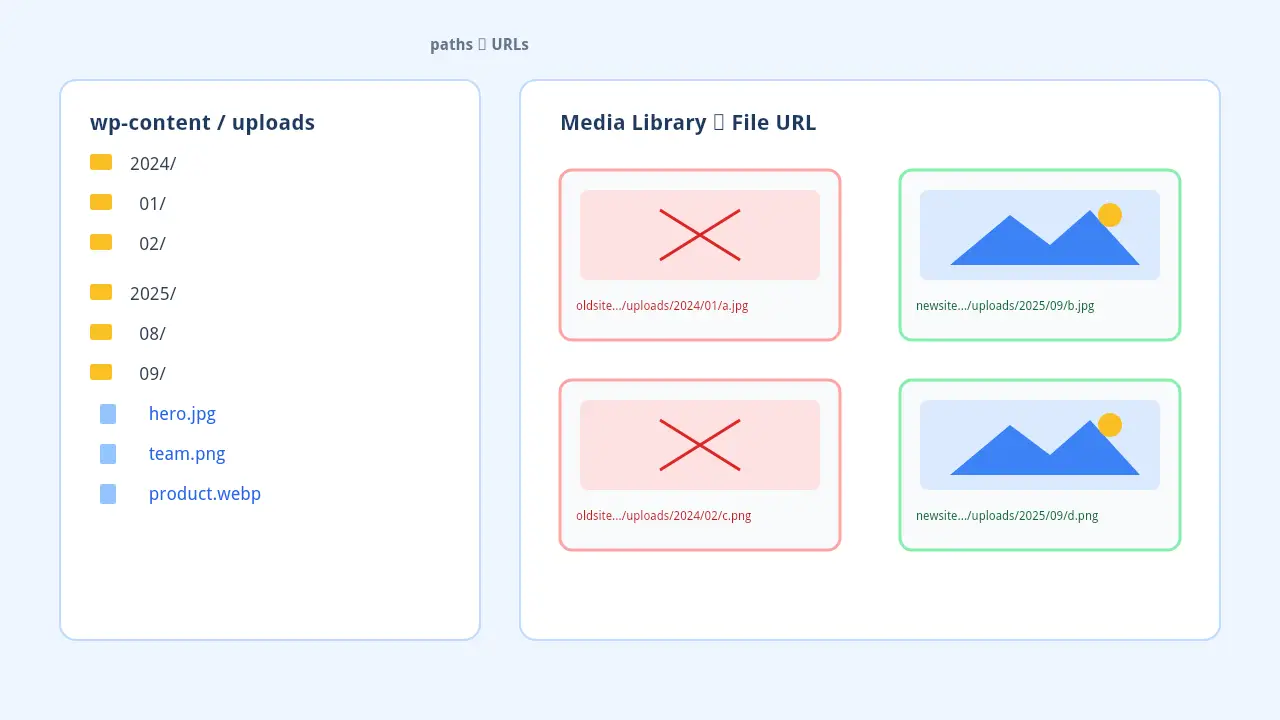
Posts, pages, and page-builder data often store full image URLs. If the old domain was https://oldsite.example and the new one is https://newsite.example, those absolute URLs keep asking the old host for files. Text comes from the new database. Images do not.
Uploads path or files missing
Sometimes the database moved cleanly, but wp-content/uploads did not. Or it moved into the wrong folder. The Media Library lists attachments, yet the files return 404 because they are not where WordPress expects them.
Serialized data that a careless replace breaks
Themes, page builders, and many plugins store settings as PHP serialized strings. A raw find-and-replace in SQL (or a text editor dump) can change string lengths and corrupt those rows. Then you get worse problems than missing images — broken layouts, empty widgets, or white screens.
CDN or cache leftovers
Old CDN hostnames, lazy-load plugins, or page cache can keep serving old image URLs after the site URL has changed. Clearing CDN and page cache is part of every migration I finish.
How I check what is actually broken
I do not guess. I open the front end logged out and watch what fails.
Browser Network tab
In Chrome DevTools → Network, I filter by Img (or Media). Hard-refresh the page. Every 404 tells me the exact URL WordPress is requesting. That URL usually reveals whether the problem is the old domain, a wrong uploads path, or a missing file.
Spot-check Media Library
In wp-admin → Media, I open a few recent and older files. If the attachment exists in the library but the file URL 404s, the database row is there and the file (or path) is not. If even the library thumbnails are blank, the uploads tree is incomplete.
Search-replace dry-run mindset
Before I change anything, I ask: what string am I replacing, and where does it live? I treat this like a dry run — count matches, confirm old vs new URL, and only then run a proper tool. Guessing with raw SQL on a live database is how serialized data gets damaged.
Fix media URLs safely after a broken images wordpress migration
Once I know the old hostname is still in content, I update URLs with a tool that understands serialized data.
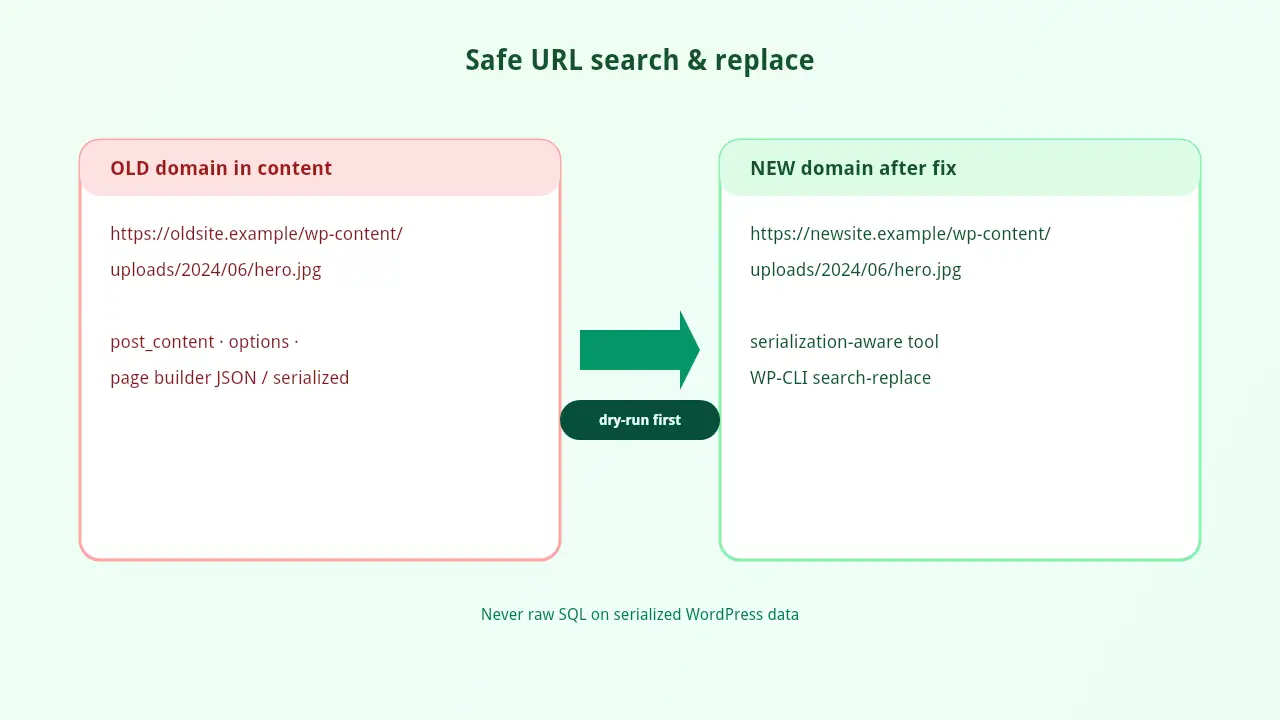
Use a Search Replace DB tool or WP-CLI — never raw SQL on serialized rows
For most client sites I use either:
- A trusted Search-Replace DB style plugin/tool that handles serialization, or
- WP-CLI
search-replacewhen I have SSH access
WP-CLI example shape (always dry-run first on staging or with --dry-run):
wp search-replace 'https://oldsite.example' 'https://newsite.example' --dry-run
wp search-replace 'https://oldsite.example' 'https://newsite.example' --all-tables
I also replace the non-HTTPS variant when the old site mixed protocols, and I confirm siteurl and home in Settings → General match the new domain. WordPress documents site URL changes in its guide to moving WordPress.
What I never do on a production database: open phpMyAdmin and run a blanket UPDATE across post_content and options without a serialization-aware tool. That shortcut is how a simple image fix turns into a full recovery job.
After the replace
I purge page cache and CDN cache, then retest the same pages that 404’d. I also spot-check a few /wp-content/uploads/YYYY/MM/ files directly in the browser.
Rebuild the uploads folder / regenerate thumbnails
Sometimes URLs are correct, but sizes are missing. WordPress stores the original plus thumbnail sizes (-150x150, -300x200, and so on). If only originals moved — or if a plugin expected sizes that were never regenerated — you get broken or stretched images.
My steps:
1. Confirm the full wp-content/uploads tree is on the new host (year/month folders and files). 2. Fix permissions so the web server can read the files. 3. Regenerate thumbnails with a regenerate-thumbnails plugin or WP-CLI media regenerate when sizes are missing. 4. Re-save any page-builder pages that hard-code specific image size URLs if they still look off.
If files truly never transferred, no URL replace will help. I re-sync uploads from the old host or from backup, then retest.
Quick checklist before I call the migration done
I do not mark a migration complete until this list is green:
siteurlandhomeshow the new domain- Homepage, a blog post, and a key landing page show images logged out
- Network tab shows no image 404s on those pages
- Media Library previews open for old and new uploads
- Search-replace completed with a serialization-safe tool (dry-run first)
- Page cache and CDN purged
- Forms, login, and (if present) checkout still work after URL changes
- Mobile view checked — broken images often show up there first for clients
For speed-related work after a move — caching, image weight, and script control — I keep a separate process on my WordPress Speed Optimization service page. Migration media fixes and performance cleanup often land in the same week.
Soft CTA if you need help
If you just moved a WordPress site and are staring at empty boxes where photos should be, you do not have to guess with raw SQL. I help businesses in Surat and remote clients clean up migrations, restore media, and leave the rest of the site intact.
See what I offer on my Services page, or contact me with the old and new URLs and a couple of example 404 image links. I will tell you whether this is a URL replace, a missing uploads folder, or both — and how I would fix it without breaking serialized data.
If you want someone to keep your site updated, backed up, and checked after a move, take a look at my WordPress maintenance and security service.