I once clicked Update on a popular plugin on a live client site and watched the homepage layout fall apart. Forms still worked. Checkout still loaded. But the hero section and a couple of Elementor widgets looked like someone had shuffled the CSS. Rolling back took longer than the update itself. That afternoon is why I almost never apply plugin updates straight to production anymore.
A WordPress staging site is the quiet habit that prevents that kind of surprise. It is not fancy. It is a private copy of the live site where I can break things safely, confirm what still works, and only then move the same change to production. If you maintain WordPress for a business in Surat or anywhere else, this workflow saves more time than it costs.
What a WordPress staging site is
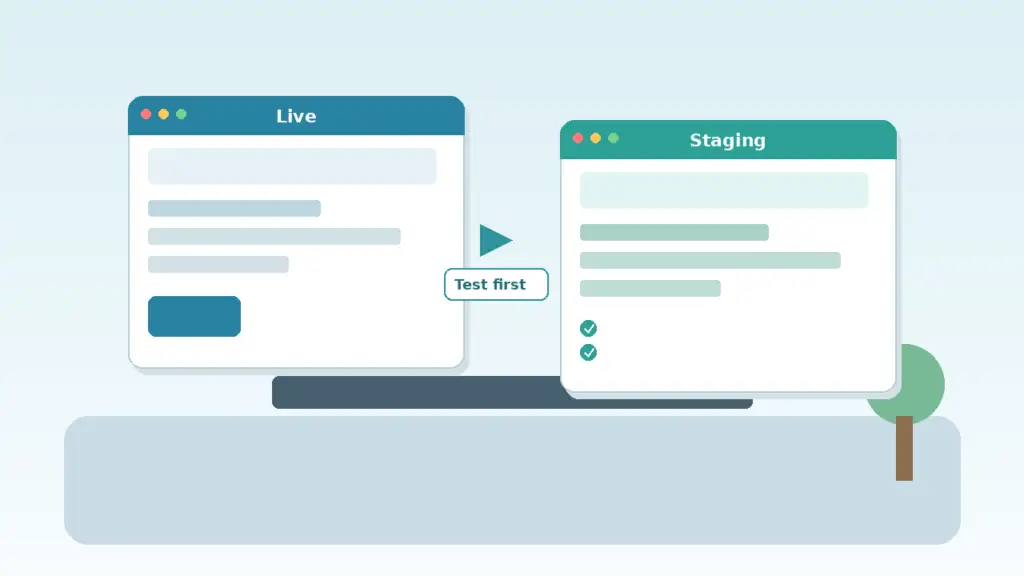
A staging copy is a near-complete clone of your live site: same theme, same plugins, same content, same settings — but on a separate URL that visitors never see. You log in, update plugins, change PHP if needed, and click around like a picky customer. If something fails, live stays untouched.
Think of it as a dress rehearsal. Live is the show. Staging is where I find out whether a plugin update breaks forms, carts, redirects, or page-builder layouts before anyone else notices.
Hosts often give you a one-click staging button. Plugins can clone the site into a subdomain or subdirectory. Either way, the goal is the same: isolate risk.
When I insist on a WordPress staging site
I do not stage every tiny typo fix. I do insist on staging when the change can cascade:
- Plugin updates — especially form, cache, security, SEO, page-builder, and WooCommerce-related plugins
- WordPress core updates — minor releases are usually smoother; major releases get a full pass on staging
- Theme updates — child themes help, but parent theme updates still deserve a look
- PHP version changes — moving from an older PHP to a newer one on the host
- New plugins that hook into checkout, login, or the admin bar
If a site also has performance work underway — caching, image cleanup, script control — I am even more careful. An update that “works” but quietly disables page cache can make the site feel slow again. I wrote about that pattern in Why Your WordPress Site Feels Slow (and the Fixes I Try First). Staging lets me catch both broken layouts and quiet regressions.
My pre-update checklist on staging
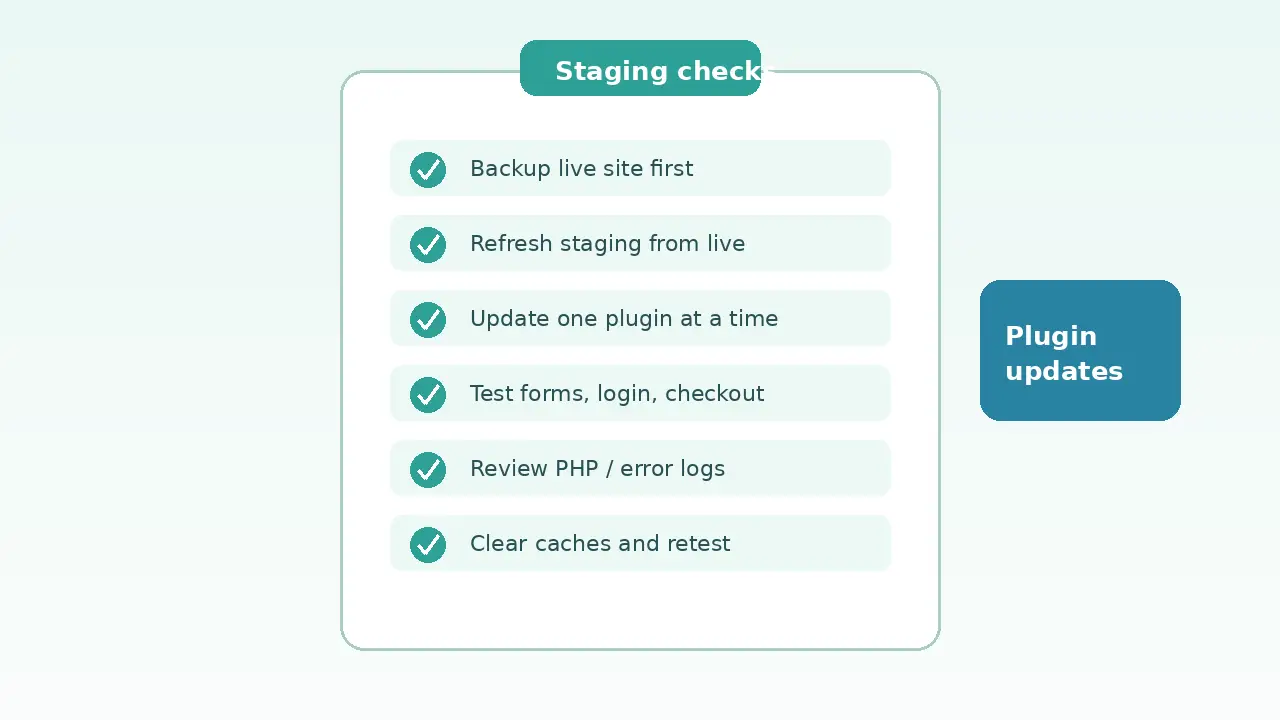
Here is the practical sequence I use for client WordPress sites. It is short on purpose so I actually follow it.
1. Refresh staging from live
Old staging is almost useless. I copy fresh files and database from production so I am testing the same stack the visitor hits today.
2. Take a backup of live anyway
Staging reduces risk; it does not replace backups. I confirm a recent full backup exists before I promote anything.
3. Update one layer at a time
I prefer one plugin (or a small related group) per pass. Bulk-updating ten plugins makes it hard to know which one broke the header.
4. Walk the money and trust paths
On staging I manually check:
- Homepage and key landing pages
- Contact / quote forms (submit a real test)
- Login / registration if the site uses them
- Cart, checkout, and account pages on WooCommerce
- Admin screens the client uses weekly
5. Watch logs and the obvious errors
I glance at PHP / debug logs when available, and I look for white screens, missing styles, or plugin notices in wp-admin.
6. Clear caches and retest
Many “it broke / it fixed itself” moments are cache. After updates I purge page cache, CDN cache if any, and retest logged-out.
WordPress documents plugin updates in the official Managing Plugins guide. Staging is how I make those dashboard update buttons boring instead of stressful.
How I promote changes to live safely
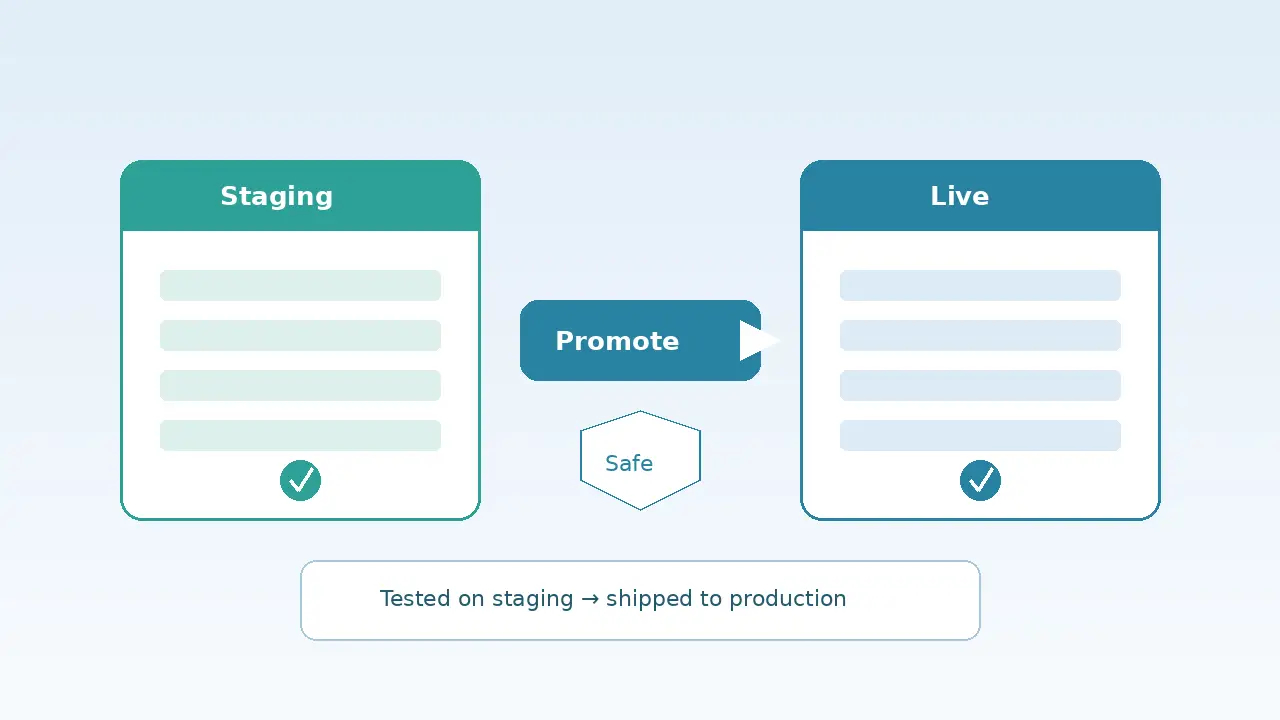
Once the WordPress staging site looks good, I still promote carefully:
1. Note exactly what changed — plugin names and versions, theme version, PHP version, or config tweaks. 2. Put live in a short maintenance window only when needed (big WooCommerce updates, PHP bumps). Many plugin updates do not need a public maintenance page if I move quickly. 3. Apply the same updates on live — same order as staging when possible. 4. Retest the same critical paths on production immediately. 5. Keep a rollback path — previous plugin version, host backup, or known-good snapshot.
Host “push staging to live” tools are convenient when they copy only what you intend. I double-check they will not overwrite newer live content (orders, form entries, blog posts) with older staging data. For content-heavy sites I often update plugins on live after staging validation, rather than blindly syncing the whole database back.
For core upgrade background and safe update habits, I also keep the WordPress upgrading handbook handy — especially when automatic updates and manual upgrades mix on the same host.
Host staging tool vs manual clone
Host staging (one-click) is my default when the host does it well. It is fast, usually matches the live server environment, and often includes a push/pull workflow. Managed WordPress hosts tend to win here.
Manual / plugin clones help when the host has no staging, or when I need a longer-lived sandbox on a subdomain. They take more care with search-replace of URLs, cron, and email (I disable real outbound mail on staging so test forms do not email real customers).
Local copies are useful for theme and plugin development, but they can miss host-specific PHP modules, object cache, or CDN behavior. For “will this plugin update survive on the real stack?” I still prefer server-side staging that mirrors production.
My rule of thumb: if the site takes payments, generates leads, or is the client’s main brochure, budget time for proper staging — not a hope-and-click update on Friday evening.
Closing
Plugin updates are not optional forever. Security and compatibility catch up with sites that freeze versions. The safer habit is not “never update.” It is “update on staging first, then promote with eyes open.”
If you want help setting up staging, a repeatable update checklist, or a careful pass on a site that has gone too long without updates, get in touch — I am Nitin Rathod, a WordPress developer based in Surat. You can also email me at rnitinb@gmail.com and tell me what you are planning to update.
Small process, fewer emergencies. That is the whole point.
If you’d rather hand off plugin updates and testing, my WordPress maintenance and security service covers regular updates and backups.