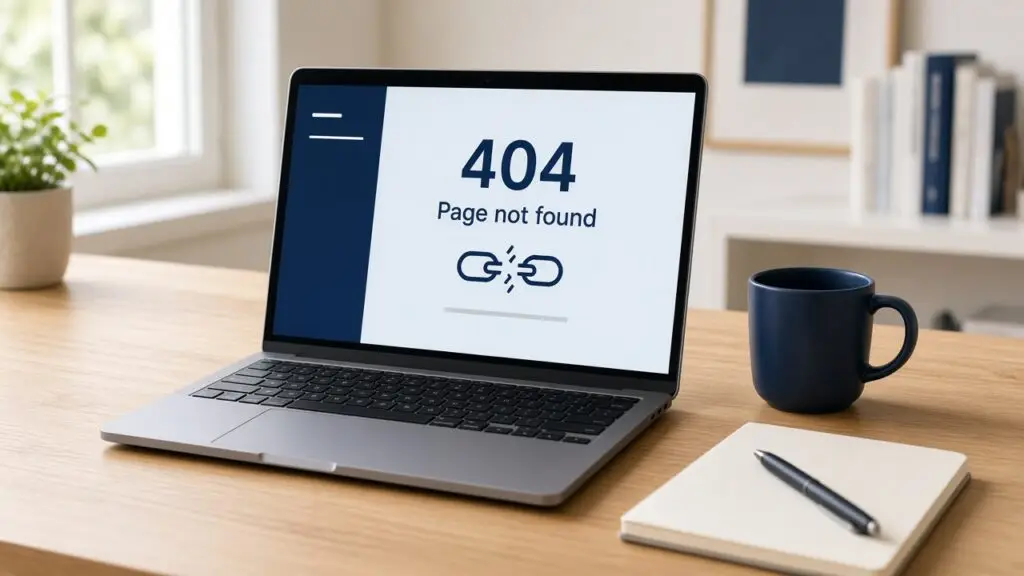
A client emails me a link, I click it, and the page says “Page not found.” The homepage loads, wp-admin works, and the post is clearly sitting there in the editor. That is the classic wordpress 404 error: the content exists, but WordPress or the server cannot map the URL to it. Visitors bounce, Google keeps hitting dead links, and ads or emails point to nothing.
I maintain WordPress sites from Surat for businesses and online stores, and I see this most after a migration, a permalink change, a new SSL or CDN setup, or a slug edit that nobody redirected. Below is how I confirm what kind of 404 I am looking at, the order I fix it in, and how I stop old URLs from breaking again.
What a wordpress 404 error usually means
Not every “not found” page has the same cause. Before I touch anything, I sort the problem into one of these patterns:
- Every post and page returns 404, but the homepage loads fine
- Only one post or page returns 404, usually after its slug changed
- Category, tag, or WooCommerce product URLs fail while normal pages work
- Old links from Google, emails, or social posts fail after a site move
- The page loads for logged-in users but shows 404 to visitors or in a private window
The first pattern almost always points to permalinks or server rewrite rules. A single broken URL points to a slug change or a deleted page. The last one often points to caching. Knowing the pattern saves me from reinstalling themes or disabling plugins at random.
Quick checks before I fix a wordpress 404 error
- Open the failing URL in a private window so I am not reading a cached or logged-in view
- Check the post status and slug in the editor: draft, private, trashed, or renamed
- Compare the URL with the permalink structure under Settings → Permalinks
- Write down the last change: migration, plugin update, slug edit, HTTPS switch, or new cache or CDN
- Confirm a recent backup exists before I edit
.htaccessor server rules
If the site was just moved to a new host or domain, I also check that images and internal links came across cleanly. The same search-and-replace mistakes I cover in fixing broken images after a WordPress migration often leave old URLs behind in menus and buttons too.
How I fix a wordpress 404 error step by step
I work from the cheapest, safest fix to the deepest one, and I retest the same URL after every step.
1. Resave the permalink settings
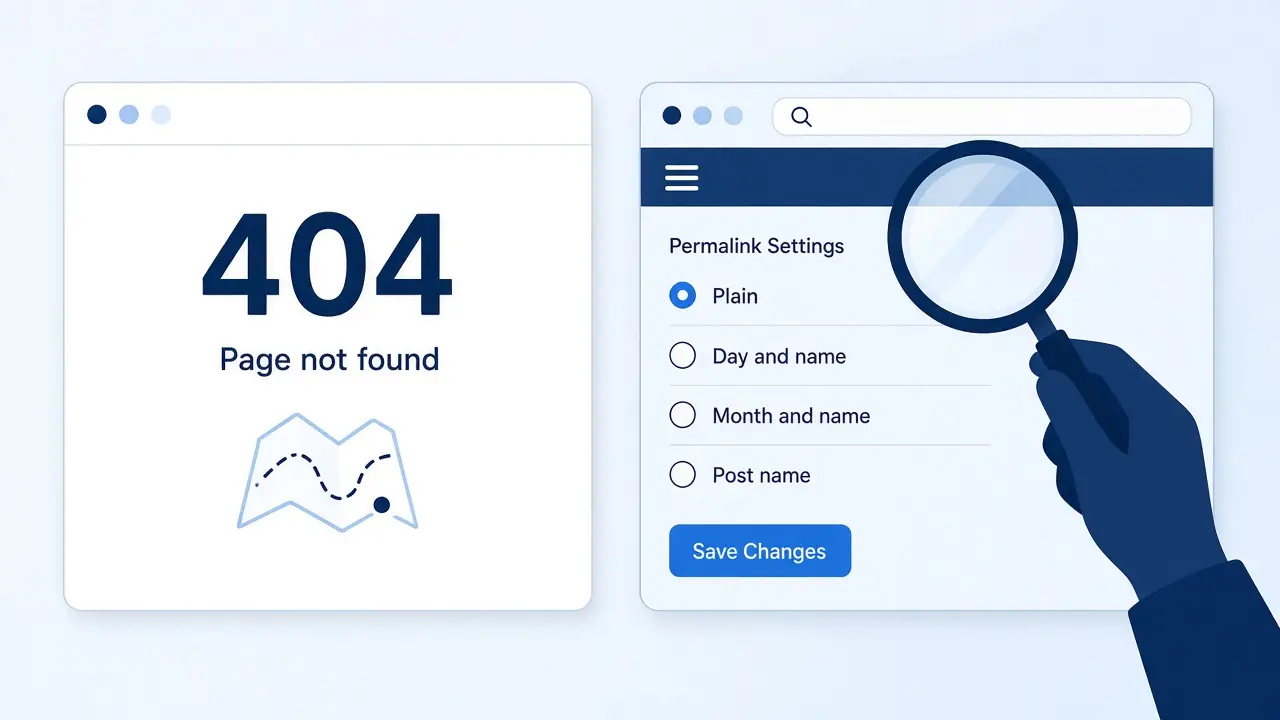
When every post shows a wordpress 404 error, I go to Settings → Permalinks and click Save Changes without changing anything. That tells WordPress to flush and rebuild its rewrite rules. It sounds too simple, but it fixes a large share of site-wide 404s after migrations and plugin changes. The WordPress documentation on the Permalinks settings screen explains each structure option if you want to understand what you are saving.
2. Check the .htaccess file on Apache hosts
If resaving does not help, I open .htaccess in the site root. On Apache and LiteSpeed servers, WordPress needs its default rewrite block between the # BEGIN WordPress and # END WordPress markers. A security plugin, a cache plugin, or a manual edit sometimes deletes or breaks that block. I restore it from the official WordPress .htaccess reference, save, and resave permalinks again. If the file is not writable, I fix the file permissions instead of fighting WordPress.
3. Confirm the server supports rewrites
On a new VPS or a fresh hosting account, Apache’s mod_rewrite may be off, or AllowOverride may block .htaccess completely. On Nginx there is no .htaccess at all, so the server block needs a try_files rule that passes requests to index.php. If I do not control the server, I ask the host to confirm rewrites are enabled for the site.
4. Rule out plugins, caches, and the CDN
Some plugins register custom post types or rewrite rules and leave a mess when they are deactivated or updated. If the 404 started right after an update, I test with that plugin off on staging, the same way I debug a WordPress plugin conflict. Then I purge the page cache, the host cache, and any CDN cache, because a cached wordpress 404 error can keep showing long after the real problem is gone.
Redirecting old URLs after a slug or site change
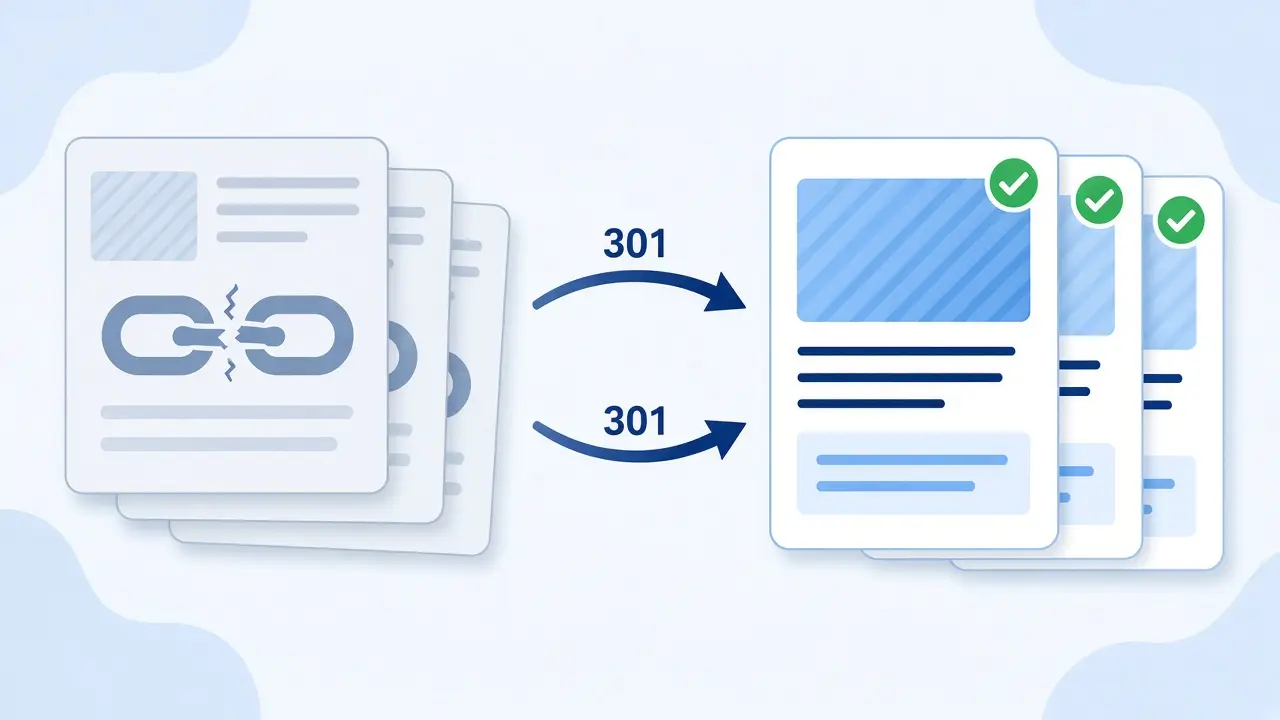
Sometimes the wordpress 404 error is correct: the old URL really does not exist anymore. A slug was shortened, a page was merged, or the whole site moved to a new structure. In that case the fix is a 301 redirect from the old URL to the closest live page, not a new copy of the content.
- I list broken URLs from Google Search Console, the server log, or a crawl tool
- I map each one to the best matching live page, not just the homepage
- I add 301 redirects with Rank Math’s redirection module, a redirect plugin, or server rules
- I update internal links and menus so the site stops linking to its own dead URLs
I avoid chains where one redirect points to another, and I keep an eye on HTTP-to-HTTPS rules so they do not fight with the new redirects. That fight is exactly how sites end up in a WordPress redirect loop, which is a worse problem than the original 404.
How I test after a wordpress 404 error fix
- Reload the failing URLs in a private window and confirm they load or redirect once
- Check a post, a page, a category archive, and on stores a product and the cart
- Run a quick crawl to catch internal links still pointing at missing pages
- Use the URL Inspection tool in Search Console for key pages that were failing
- Keep an eye on the Pages report over the next few weeks as Google recrawls
How I stop the wordpress 404 error from coming back
- Change permalink structure only when there is a strong reason, and plan redirects first
- Add a 301 redirect every time a published slug changes
- Test migrations and big plugin updates on staging, as I explain in why I use a staging site before plugin updates
- Keep a copy of a working
.htaccessor server config with each backup - Check Search Console for new “Not found (404)” URLs once a month so a fresh wordpress 404 error never sits unnoticed
A wordpress 404 error looks alarming, but the content is usually safe. It is a routing problem between the URL, WordPress’s rewrite rules, and the server. If your posts or product pages keep returning “not found” and you want help from someone who fixes this regularly, you can look at my WordPress maintenance and security service, email me at rnitinb@gmail.com, or use the contact page. I am happy to find the cause, fix the rules, and redirect the URLs your visitors are still clicking.