
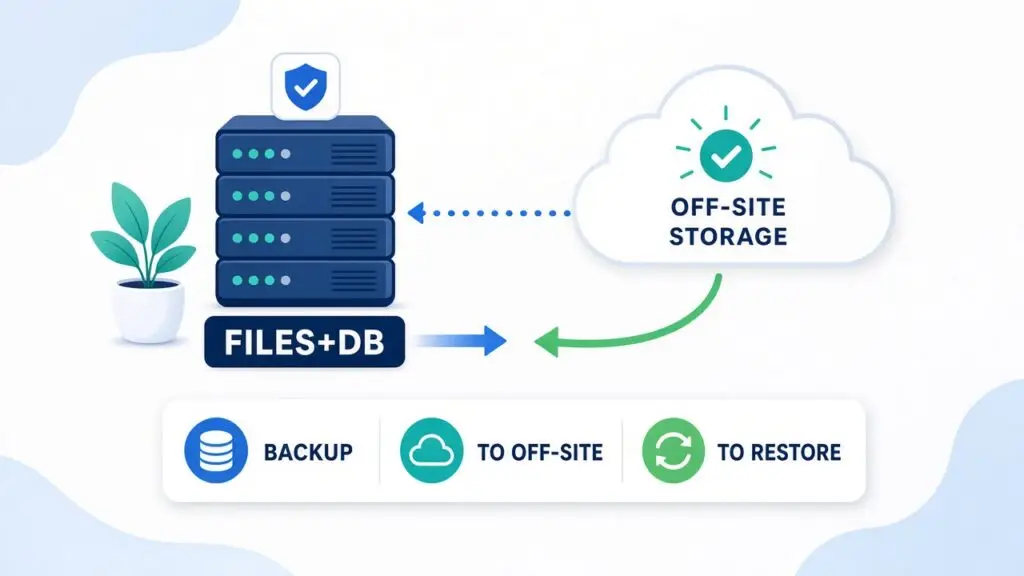
A client once called me after a plugin update left their homepage blank. They were calm at first — “We have backups,” they said. We opened the host panel, downloaded the latest zip, and restored it. The site came back… without half the media library and with an older database that wiped two days of form leads. That day is why I care less about having a backup button and more about WordPress backups that I have already proven can restore.
If your site takes enquiries, sells products, or is the face of your business, a backup is not a checkbox. It is a recovery plan. Here is the practical WordPress backups setup I use for client sites from Surat and for remote work: what I back up, how often, where copies live, and how I test a restore before anyone is in a panic.
Why WordPress backups fail when you need them
Most “we thought we were covered” stories share the same patterns.
Only the database was saved
Posts and settings live in the database. Themes, plugins, uploads, and custom code live in files. Restore a database alone onto a half-missing file tree and you get broken layouts, missing images, or a white screen.
Only files were saved
The opposite mistake: a full wp-content zip with an ancient or missing database dump. Pages look familiar until you notice orders, users, or form entries from last week are gone.
Backups never left the same server
If the disk dies, the account is suspended, or the host account is wiped, an on-server backup folder dies with it. Copies on the same machine are better than nothing — they are not enough.
Nobody ever tried a restore
A green “Success” message in a plugin is not proof. Jobs can skip large upload folders, hit size limits, or store incomplete archives. The only proof is restoring onto a safe copy of the site and clicking around.
Retention is too short
Daily WordPress backups that keep only 24 hours of history will not help if you discover corruption three days later. I keep enough history to roll back past “when did this actually break?”
WordPress’s own advanced backup documentation makes the same point: back up both data and files, and treat recovery as something you practice.
What I include in WordPress backups
When I say full backup, I mean two halves that travel together.
Files
- WordPress core (or a clean reinstall plan plus
wp-config.php) wp-content/themes,plugins, anduploads(media disasters hide in uploads)- Any mu-plugins, drop-ins, or custom folders the site actually uses
Database
- All WordPress tables for that site — posts, options, users, WooCommerce tables, form entries, and the rest
I note PHP version, active theme, and key plugin versions in a short text file beside the archive. When I restore months later, that context saves guesswork. For stores and lead-gen sites I watch uploads size and fast-growing tables. A job that “finished” but skipped a multi-gigabyte uploads folder is not a full backup.
How often I run WordPress backups
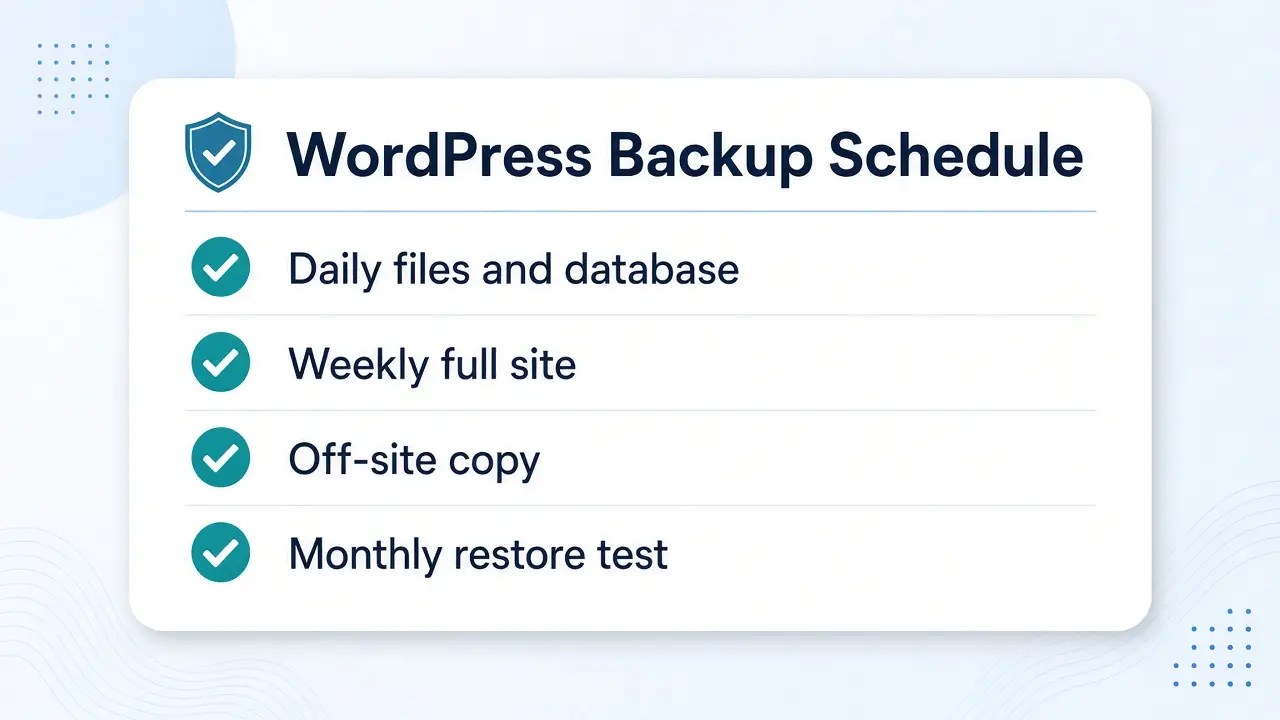
Frequency follows how fast the site changes.
- Brochure / rarely updated sites: full backup at least weekly, plus a fresh run before any theme, plugin, or PHP change.
- Active blogs: database daily, full files at least weekly.
- WooCommerce or high-lead sites: database daily, full files weekly, and a backup immediately before updates, migrations, or big catalog changes.
I prefer automated schedules with an alert when a run fails. Silent failures are worse than no automation you think WordPress backups are protecting you until the day they are not.
Off-site copies are non-negotiable
Every serious plan has at least one copy that is not on the production server: a host snapshot plus remote storage (S3-compatible, Backblaze, Drive, Dropbox, or another host), or a managed plugin that ships archives off-site by default.
I keep storage credentials somewhere I can reach if WordPress itself is down. A restore that requires a working wp-admin first is a bad design. I also rotate daily / weekly / monthly sets so the newest archive is not the only option when that newest file is the corrupted one.
How I test WordPress backups with a real restore
This is the step most people skip. I restore onto a WordPress staging site never onto live for a test.
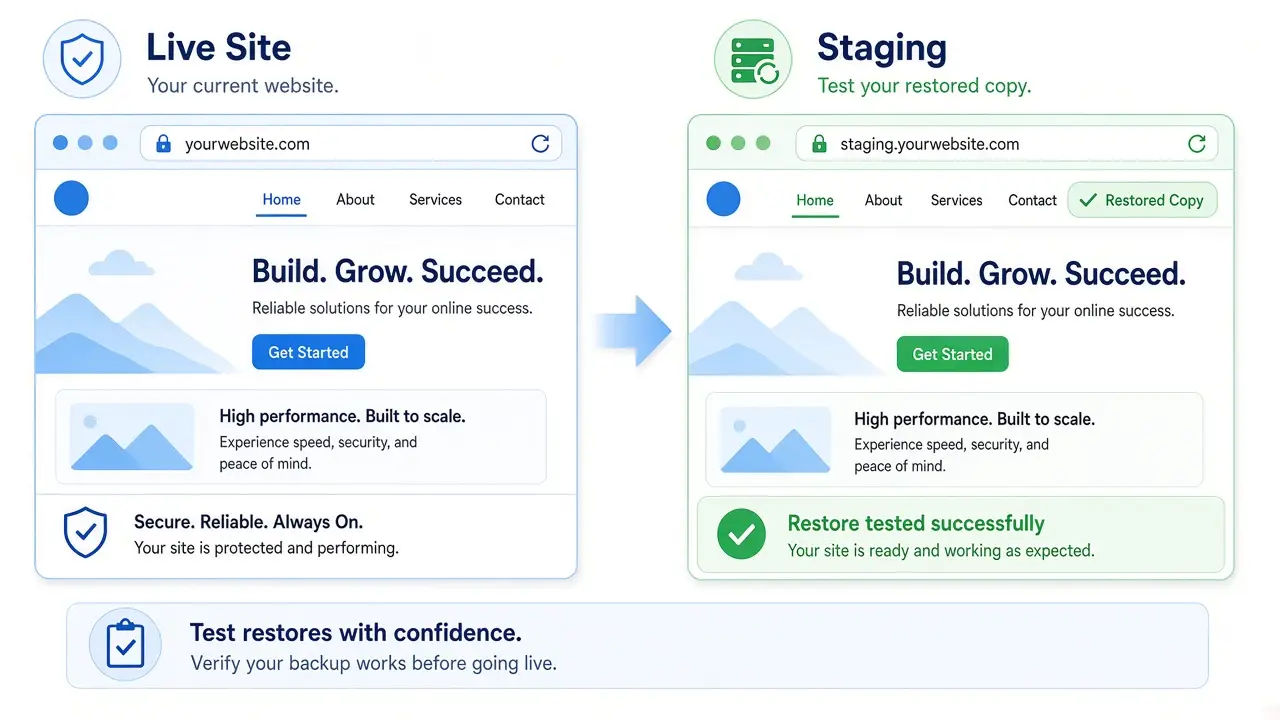
My restore test, step by step
- Pick a recent archive — preferably from the automated job, not one I just created by hand.
- Restore files + database onto staging with the same method I would use in an emergency when possible.
- Fix URLs if needed — staging should not confuse the test by leaning on production in odd ways; search-replace carefully when required.
- Disable real outbound email on staging so test forms do not email customers.
- Walk the critical paths homepage, key inner pages, contact form, login, and for stores: shop, cart, checkout.
- Check media and settings — open images from different months; confirm menus, permalinks, and a recent post or order.
- Write a one-line note — date tested, backup date used, pass/fail, anything weird.
If the restore fails, I fix the WordPress backups job immediately. Finding that out on a quiet Tuesday is cheap.
Common mistakes I still see
- Trusting “the host takes snapshots” without knowing retention or how to restore one site
- Backing up
wp-contentbut excludinguploadsto save space” - Storing archives inside the public web root where they can be downloaded
- Skipping cache-folder excludes and wondering why archives are huge
- Testing a restore once years ago and assuming nothing changed
- Forgetting a backup before bulk plugin updates or a migration
Good habits beat expensive tools. A simple, tested WordPress backups process outperforms a fancy plugin nobody monitors.
Short checklist I actually use
Before I call a site “covered,” I want all of this true:
- Automated job backs up files + database
- At least one off-site copy exists
- Retention covers more than “yesterday only”
- A backup runs before risky updates
- A restore was tested on staging within the last month (or after a big stack change)
- I know where the archives are and how to restore without guessing
- Staging email is muted during restore tests
For official background on keeping WordPress healthy, the WordPress documentation hub is still the best free reference library I point clients to.
Closing
WordPress backups are not about collecting zip files. They are about putting a working site back online — with the right database, the right uploads, and as little drama as possible. Back up both halves, ship a copy off-site, and test a restore on staging on purpose.
If you want help setting this up, verifying that your current backups actually restore, or folding backups into ongoing care, I offer WordPress maintenance and security from Surat (and remote). Reach me on the Contact page or email rnitinb@gmail.com and tell me how your site is hosted today.
A backup you have restored once is worth more than ten you have never opened.