
The WordPress robots.txt file is tiny, but one wrong line in it can quietly hide a whole website from Google. I have opened client sites that dropped out of search for weeks, and the cause was a single Disallow: / left over from a staging copy. In this post I explain what the WordPress robots.txt file actually does, the simple version I use on most client sites, the mistakes I fix most often, and how I test changes before they go live.
I am a freelance WordPress developer in Surat, and checking robots.txt is one of the first things I do in any SEO or launch review.
What the WordPress robots.txt file does
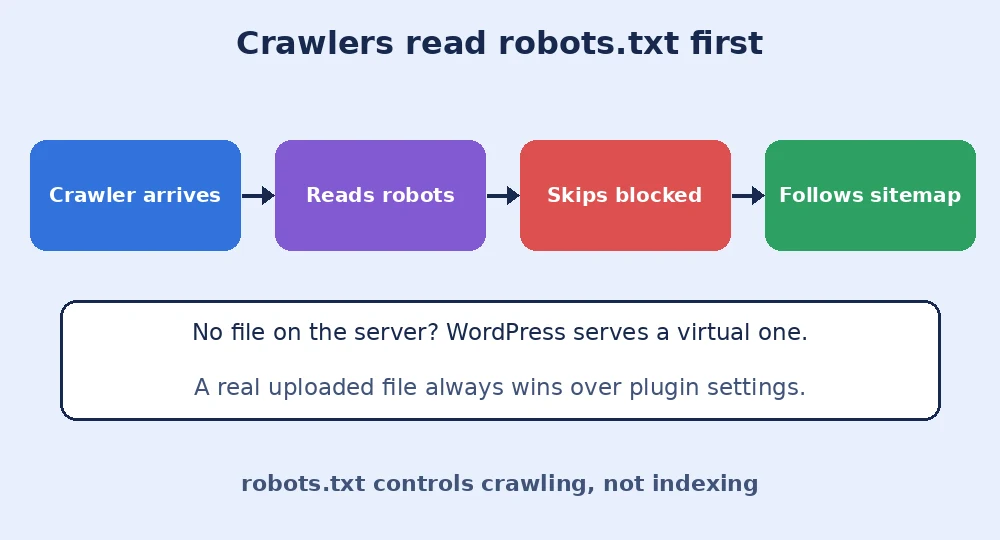
Before a search engine crawler visits your pages, it requests /robots.txt from the root of your domain. The file tells crawlers which paths they may crawl and where your XML sitemap lives. It is a set of polite instructions, not a security feature: well-behaved bots follow it, bad bots ignore it, and anyone can read it in a browser.
WordPress does not ship a physical robots.txt file. If none exists on the server, WordPress generates a virtual one on the fly that blocks /wp-admin/ but allows admin-ajax.php. SEO plugins such as Rank Math or Yoast let you edit that virtual file from the dashboard, and a real robots.txt file uploaded to the site root always takes priority over both.
The WordPress robots.txt setup I use on most sites
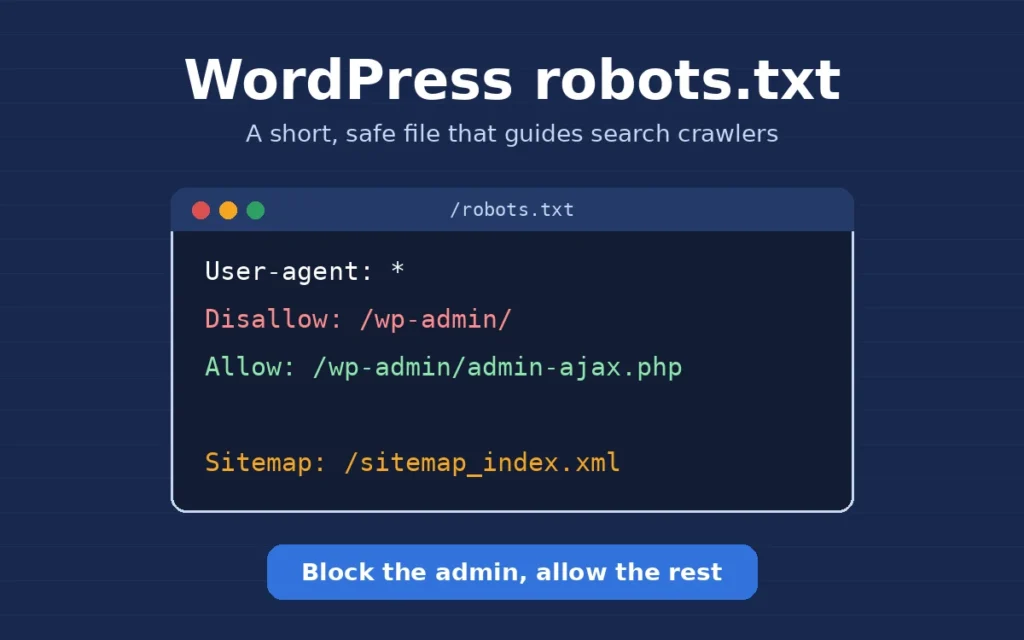
For a normal business site or WooCommerce store, I keep it short. Modern search engines need to load your CSS, JavaScript and images to render pages properly, so I block very little:
User-agent: *
Disallow: /wp-admin/
Allow: /wp-admin/admin-ajax.php

Sitemap: https://www.example.com/sitemap_index.xml
On WooCommerce stores I sometimes add Disallow lines for cart and checkout URLs with query strings, such as /*?add-to-cart=*, because bots following those links waste crawl budget and can create fake sessions. I do not block /wp-content/, /wp-includes/ or the uploads folder, and I always make sure the Sitemap line points to the sitemap the SEO plugin actually generates. If that sitemap itself has problems, my guide on fixing a WordPress sitemap that is not working covers the usual causes.
WordPress robots.txt mistakes I fix most often
These are the problems I see again and again on sites that come to me for help:
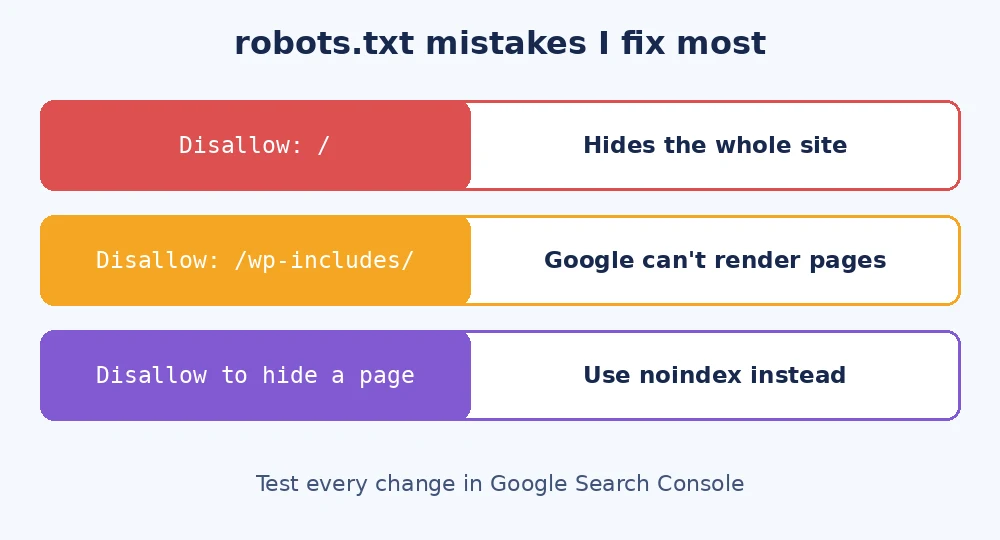
- Disallow: / on a live site. This blocks everything. It usually comes from a staging site, or from the “Discourage search engines from indexing this site” box in Settings, Reading being left ticked after launch.
- Blocking CSS and JavaScript. Old guides told people to block
/wp-includes/and/wp-content/plugins/. That stops Google from rendering the page the way visitors see it. - Using Disallow to hide a page from search. Blocking a URL in robots.txt stops crawling, not indexing. If other sites link to it, it can still appear in results. For pages that should stay out of Google, I use a
noindextag instead and leave the page crawlable so Google can see that tag. - Two robots.txt sources fighting. A physical file on the server overrides the one you are editing in the SEO plugin, so changes in the dashboard seem to do nothing.
How I test robots.txt changes
First I open https://yourdomain.com/robots.txt in a private browser window to confirm which version is actually being served, and clear any page cache or CDN cache if it looks old. Then I check the robots.txt report in Google Search Console, which shows when Google last fetched the file and whether it found errors. For a specific page, the URL Inspection tool tells me if it is blocked by robots.txt. Google’s own introduction to robots.txt is the best reference for the rules and how Googlebot reads them, and the WordPress do_robots() reference explains how the virtual file is generated.
Robots.txt is also part of my WordPress and WooCommerce launch checklist, because the staging leftover problem almost always shows up on launch day.
Final thoughts
A good WordPress robots.txt file is short and boring: block the admin area, allow admin-ajax, point to your sitemap and leave everything else open. Use noindex, not Disallow, to keep pages out of search, and test every change in Search Console. If your site has disappeared from Google or you are not sure what your robots.txt is doing, you can contact me and I will check it for you.