
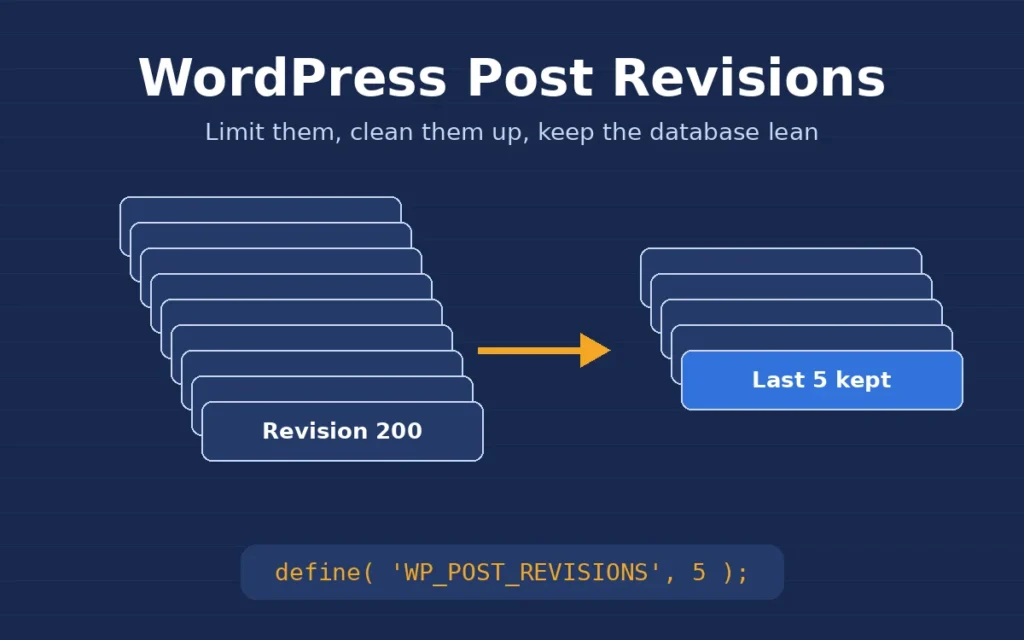
WordPress post revisions are one of the best safety nets in WordPress, and also one of the quietest causes of a bloated database. Every time you click Update, WordPress saves a full copy of the post. On a site that has been running for a few years, I regularly find more revision rows in the database than real posts and pages. In this post I explain how WordPress post revisions work, how I check whether they are a problem, and how I limit and clean them up without losing anything a client might need.
I am a freelance WordPress developer in Surat, and this is a routine part of the maintenance work I do on older client sites.
How WordPress post revisions work
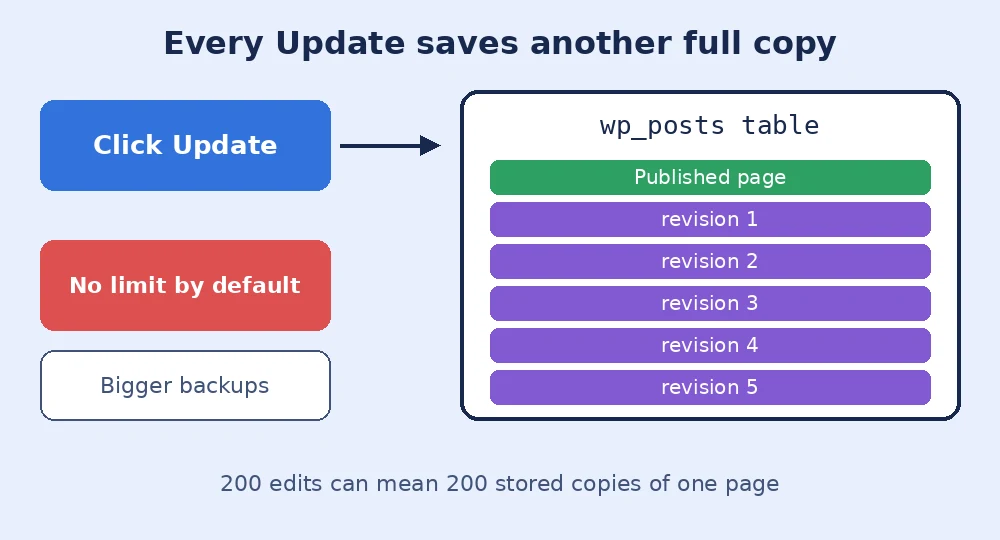
When you edit a post or page and save it, WordPress stores the previous version as a separate row in the wp_posts table with the post type revision. It also keeps one autosave per user while you write. That is what lets you open the Revisions screen, compare two versions side by side and restore an older one with a click.
By default there is no limit. A landing page that a client tweaked 200 times has 200 stored copies, each with its own metadata. Page builders make this worse, because they often store large chunks of layout data with every save.
How I check if WordPress post revisions are bloating the site
The quickest check is in the editor itself. In the Classic Editor, the Publish box shows “Revisions: 37” with a Browse link. If the busiest pages show numbers in the hundreds, the database is carrying a lot of dead weight.
For the full picture I run a simple query in phpMyAdmin or with WP-CLI on staging:
SELECT COUNT(*) FROM wp_posts WHERE post_type = 'revision';I compare that number with the count of published posts and pages. If revisions are five or ten times higher, it is worth acting. Extra rows slow down some admin queries, make backups bigger and take longer to restore, and make migrations heavier than they need to be.
Limiting WordPress post revisions in wp-config.php
I never switch revisions off completely. Clients do make mistakes, and being able to roll a page back is worth a few extra rows. Instead, I set a sensible limit by adding one line to wp-config.php, above the line that says “That’s all, stop editing”:
// Keep only the last 5 revisions of each post
define( 'WP_POST_REVISIONS', 5 );

// Autosave every 2 minutes instead of every minute
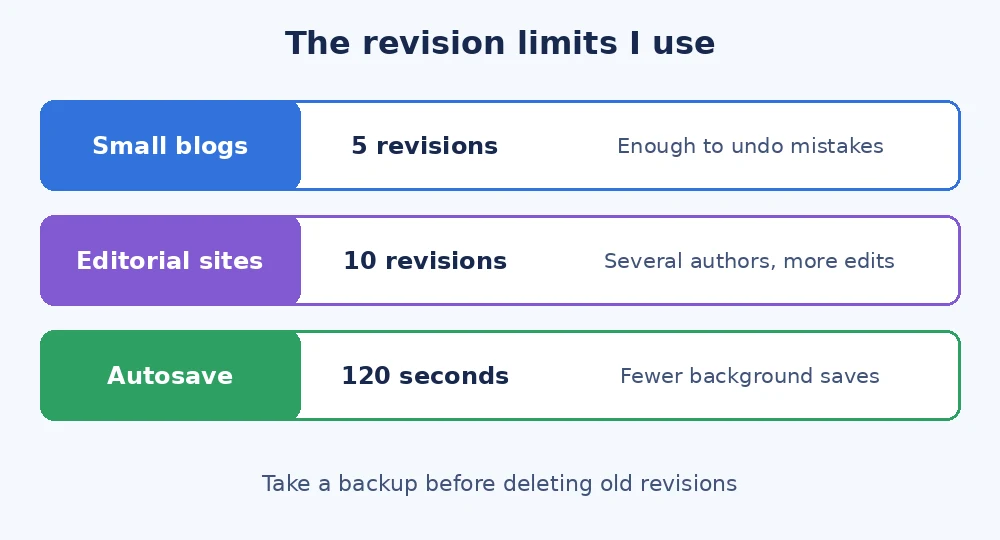
define( 'AUTOSAVE_INTERVAL', 120 );
The numbers I usually pick:
- Brochure sites and small blogs: 5 revisions.
- Busy editorial or multi-author sites: 10 revisions.
- WooCommerce stores: 5 revisions, since products are edited often but rarely need older copies.
The limit applies the next time each post is saved, so old extra revisions are trimmed gradually. Both constants are documented on the official wp-config.php reference, and the Revisions guide explains how restoring works for editors.
Cleaning up old revisions safely
Setting a limit stops future bloat, but it does not delete what is already there in one go. For that I take a fresh backup first, then use WP-CLI on the server:
wp post list --post_type=revision --format=ids | xargs wp post delete --forceThis deletes revisions through WordPress itself, so their metadata goes with them. If WP-CLI is not available, a cleanup plugin such as WP-Optimize does the same from the dashboard. I avoid raw SQL deletes on live sites, because they can leave orphaned rows behind in wp_postmeta. After the cleanup I optimise the tables and check that a few key pages still show their recent revisions.
Revisions are just one part of database maintenance, so I usually do this alongside the other steps in my WordPress database cleanup guide, and before any move covered in my WordPress migration process.
Final thoughts
WordPress post revisions are worth keeping, just not forever. Set a limit of 5 to 10 in wp-config.php, slow down autosave a little, take a backup and clear out the old copies once. Your database, backups and admin screens will all feel lighter. If your site has grown heavy over the years and you would like help tidying it up, you can contact me and I will take a look.