

The WordPress Heartbeat API is one of those features most site owners have never heard of, yet it can quietly eat a lot of server resources. When a client tells me their hosting account keeps hitting CPU limits, or the dashboard feels sluggish even on a small site, the WordPress Heartbeat API is one of the first things I check. In this post I explain what it does, how I spot when it is causing trouble, and how I control it without breaking the features that depend on it.
I am a freelance WordPress developer in Surat, and on shared hosting plans this small change often makes a bigger difference than another caching plugin.
What the WordPress Heartbeat API actually does
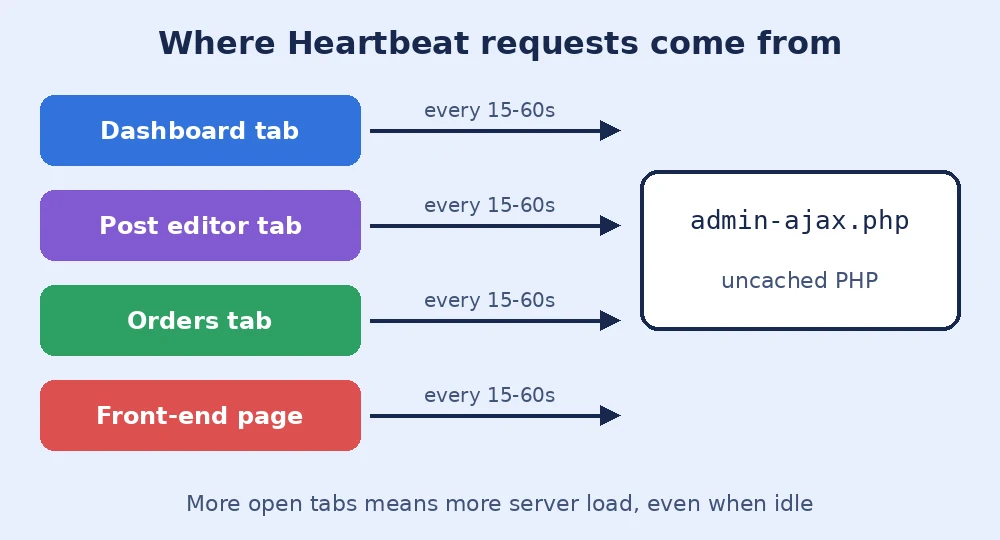
The Heartbeat API is a simple timer built into WordPress. While a browser tab with WordPress is open, it sends a small request to wp-admin/admin-ajax.php every 15 to 60 seconds. WordPress uses these “ticks” for useful jobs: autosaving posts while you write, showing a warning when another user is editing the same post, keeping your login session alive, and letting plugins refresh live data such as WooCommerce order notices.
The problem is that every tick is a full PHP request. One editor with one tab open is fine. But leave five dashboard tabs open all day, add a couple of team members, and you have hundreds of uncached requests an hour hitting the server, even when nobody is doing anything.
How I check if the WordPress Heartbeat API is the problem
I start with the hosting panel. If CPU or “entry process” usage stays high overnight while traffic is low, background requests are a likely suspect. Then I look at the server access log and count requests to admin-ajax.php with the action=heartbeat parameter. If they make up a large share of the total, I have my answer.
In the browser, I open the developer tools, go to the Network tab on a dashboard page and filter by admin-ajax. Watching it for a minute shows exactly how often the ticks go out. On staging, the free Query Monitor plugin also helps me see which plugins hook into each request and how slow they are.
My rule: slow it down, do not switch it off everywhere
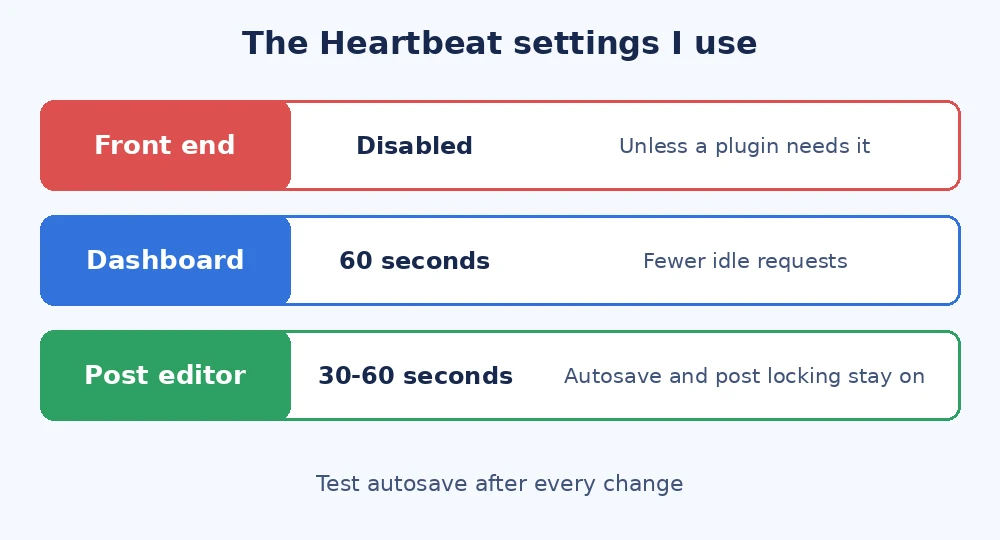
Many tutorials say to disable the Heartbeat API completely. I almost never do that, because it also turns off autosave and the post locking warning. On a site with several editors, that is how someone loses an hour of writing or two people overwrite each other’s changes. My usual setup is:
- Front end: disabled, unless a plugin needs it there (some live chat or membership plugins do).
- Dashboard: slowed to 60 seconds.
- Post editor: left on, or set to 30 to 60 seconds, so autosave and post locking keep working.
Controlling the WordPress Heartbeat API with a small snippet
I prefer a few lines of code over another plugin. I add this to a small custom plugin or the child theme’s functions.php:
// Slow the Heartbeat down to 60 seconds
add_filter( 'heartbeat_settings', function ( $settings ) {
    $settings['interval'] = 60;
    return $settings;
} );

// Stop it on the front end only
add_action( 'init', function () {
    if ( ! is_admin() ) {
        wp_deregister_script( 'heartbeat' );
    }
}, 1 );
The heartbeat_settings filter accepts an interval between 15 and 120 seconds. You can read more about how the ticks and data hooks work in the official Heartbeat API documentation. If you would rather not touch code, the free Heartbeat Control plugin gives you the same options in a settings screen, and some caching plugins include a similar switch.
What I test after changing it
After the change I check three things. First, I edit a post for a couple of minutes and confirm the “Draft saved” autosave message still appears. Second, I open the same post as a second user and confirm the “currently editing” warning shows up. Third, on WooCommerce sites, I check that new order notifications and any live stock or chat features still behave. Then I compare CPU usage in the hosting panel over the next day to confirm the WordPress Heartbeat API change actually helped.
Heartbeat is rarely the only cause of a slow site, so I look at it alongside the other checks in my post on fixing a slow WordPress admin and my WordPress cron jobs guide, since a busy cron can cause very similar symptoms.
Final thoughts
The WordPress Heartbeat API is useful, but its default timing is more than most sites need. Slow it down in the dashboard, stop it on the front end, keep it working in the editor, and test autosave afterwards. If your hosting keeps warning you about resource limits and you would like someone to find out why, you can contact me and I will take a look.