
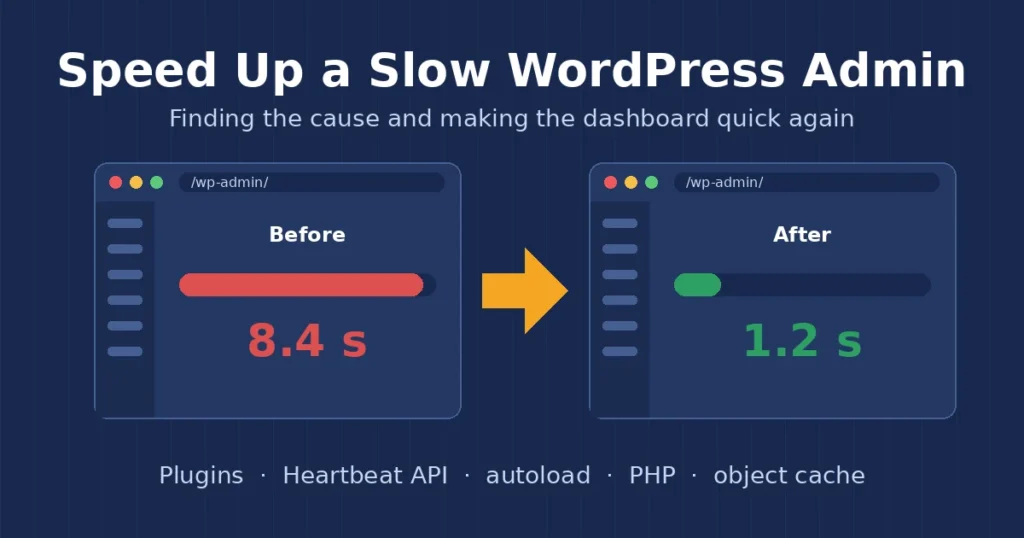
A slow WordPress admin is one of the most common complaints I hear from clients. The front end of the site loads fine for visitors, but every click inside the dashboard takes five or ten seconds, saving a post feels like a gamble, and the WooCommerce orders screen spins forever. In this post I explain how I find out why the WordPress admin is slow and the fixes I use to make the dashboard feel quick again.
I am a freelance WordPress developer in Surat, and I have cleaned up dozens of laggy dashboards on client sites. The good news is that the cause is almost never a mystery. It is usually one heavy plugin, a bloated database table or a server that is a little too small, and once you measure it properly the fix is straightforward.
Why the front end is fast but the admin is slow
Page caching hides a lot of problems. When a visitor opens your homepage, a caching plugin or the host usually serves a saved copy, so PHP and the database barely do any work. The admin area is never cached. Every screen in wp-admin runs WordPress, the active theme and all of your plugins from scratch, so anything slow in that stack shows up there first. That is why a slow WordPress admin is often the earliest warning that something under the hood needs attention.
How I find the cause of a slow WordPress admin
Before I change any settings, I measure. My first tool is the free Query Monitor plugin. I install it on staging or, if the problem only happens on live, I activate it for a short time and only for my admin user. Then I open the slowest screens, such as the dashboard, the posts list or the WooCommerce orders page, and check the toolbar panel.
- Page generation time: anything over two seconds in the admin tells me there is a real problem to chase.
- Queries by component: shows which plugin or theme is running the most or the slowest database queries.
- HTTP API calls: external requests to licence servers, update checks or APIs that make the page wait.
- PHP errors and memory use: notices and warnings that slow things down and point at buggy code.

In most cases of a slow WordPress admin, one line in that report stands out straight away, and that tells me which of the fixes below to start with.
The fixes I use to speed up a slow WordPress admin
1. Find the heavy plugin
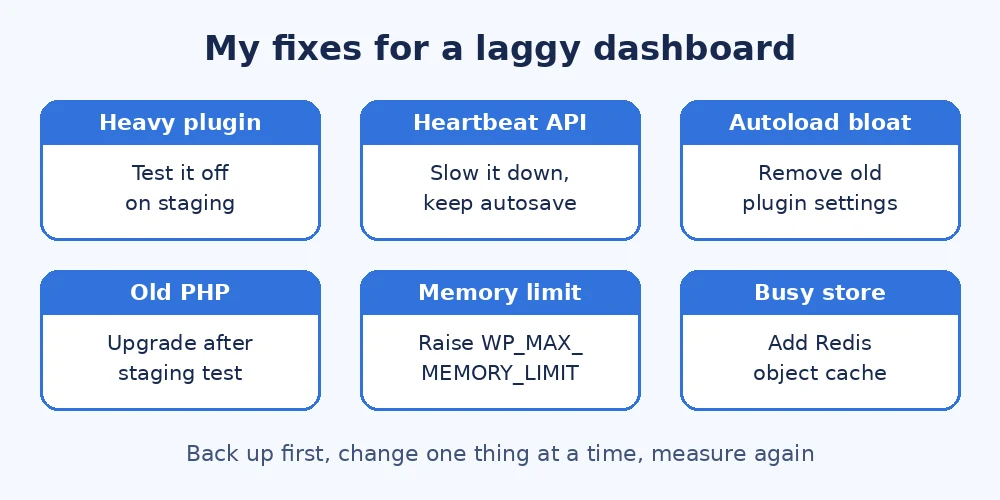
If Query Monitor points at one plugin, I test the admin with it switched off on staging. Page builders, statistics plugins, security scanners and “all in one” SEO or marketing plugins are frequent culprits, because many of them add dashboard widgets and run reports on every admin page. If Query Monitor does not make it obvious, I switch plugins off one by one, the same method I describe in my guide to finding a WordPress plugin conflict.
2. Slow down the Heartbeat API
The WordPress Heartbeat API sends a request to the server every 15 to 60 seconds while an admin tab is open. It powers autosave and post locking, which are useful, but on shared hosting a few open tabs can add up to a lot of requests. I do not switch it off completely. I keep it on the post editor and slow it down elsewhere, either with a small code snippet that uses the heartbeat_settings filter or with a lightweight performance plugin that already has this option.
3. Clean up autoloaded options and old data
Every admin page loads all the autoloaded rows from the wp_options table. Plugins you removed years ago often leave large autoloaded settings behind, and I have seen sites loading several megabytes on every request. I check the total autoload size, remove leftovers from deleted plugins, and clear expired transients, old revisions and spam comments. My post on WordPress database cleanup covers the full process, including the backup I take first.
4. Remove dashboard widgets you never look at
On a slow WordPress admin, the main dashboard screen is often the slowest page of all because each widget can run its own queries or fetch data from outside the site. I hide the widgets the client never uses through Screen Options, and on client sites I sometimes remove them with code so the dashboard opens instantly.
5. Update PHP and raise the memory limit
Newer PHP versions run WordPress noticeably faster, so an old PHP version alone can make a slow WordPress admin feel twice as slow. I test the upgrade on staging first, as I explain in my WordPress PHP update guide. I also check WP_MAX_MEMORY_LIMIT, which controls how much memory the admin area can use. The wp-config.php documentation explains this setting, and my post on the WordPress memory limit shows the values I use.
6. Add an object cache on busy sites
On WooCommerce stores and membership sites with many logged-in users, a persistent object cache such as Redis can make a big difference in the admin, because repeated database queries are answered from memory. I only enable it when the host supports it properly. On a small brochure site it is usually not needed.
7. Fix slow external requests
If Query Monitor shows HTTP calls taking several seconds, the admin is waiting on another server. Common examples are licence checks for premium plugins, blocked update requests and feeds that time out. I update or replace the plugin causing it, and if the server cannot reach the outside world at all, I talk to the host about the firewall rules.
8. Check the hosting itself
Sometimes the code is fine and the server is simply too small for the job, and no plugin tweak will fix a slow WordPress admin on an underpowered plan. If the admin is slow even with only a default theme and no plugins active, I look at CPU limits, PHP workers and database speed with the host. Moving a busy WooCommerce store from basic shared hosting to a better plan is often the cheapest fix in the long run.
Keeping a slow WordPress admin from coming back
- Install fewer, better plugins: every plugin adds code that runs on each admin page.
- Delete what you deactivate: and remove its leftover settings if the plugin does not clean up after itself.
- Check Tools > Site Health regularly: it flags old PHP, failed scheduled events and other problems early.
- Measure before and after: a quick Query Monitor check after big updates catches problems before clients notice them.
For the front end, the WordPress optimization guide is a good reference, and my post on why a WordPress site feels slow covers the fixes I try first for visitors.
Final thoughts
A slow WordPress admin wastes time every single day, and it usually gets worse as the site grows. Measure first with Query Monitor, deal with the heaviest plugin, tame the Heartbeat API, clean up autoloaded data, and make sure PHP and hosting are up to date. If your dashboard is still crawling after that and you would like a second pair of eyes, feel free to get in touch and I will be happy to take a look.