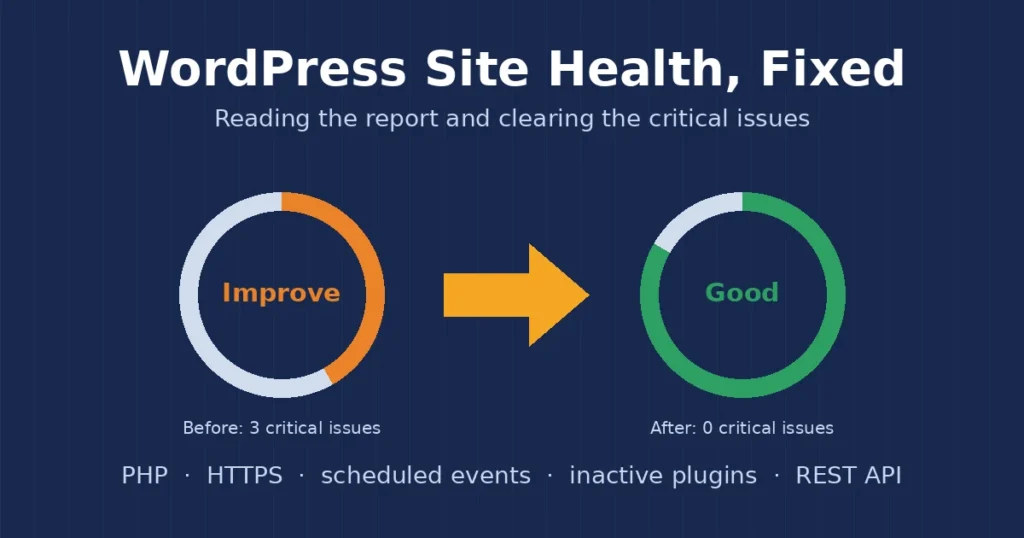
WordPress Site Health is a built-in report that most site owners only notice when a dashboard widget says their site “should be improved” or shows a red number of critical issues. It is easy to ignore, but on client sites I treat it as a free first audit. In this post I explain how I read the WordPress Site Health screen, which warnings actually matter, and how I fix the common ones without breaking anything.
I am a freelance WordPress developer in Surat, and when I take over a new site for maintenance, the Site Health page is one of the first places I look. It takes two minutes and often points straight at the things that cause slow pages, failed updates and security gaps later.
What the WordPress Site Health screen checks
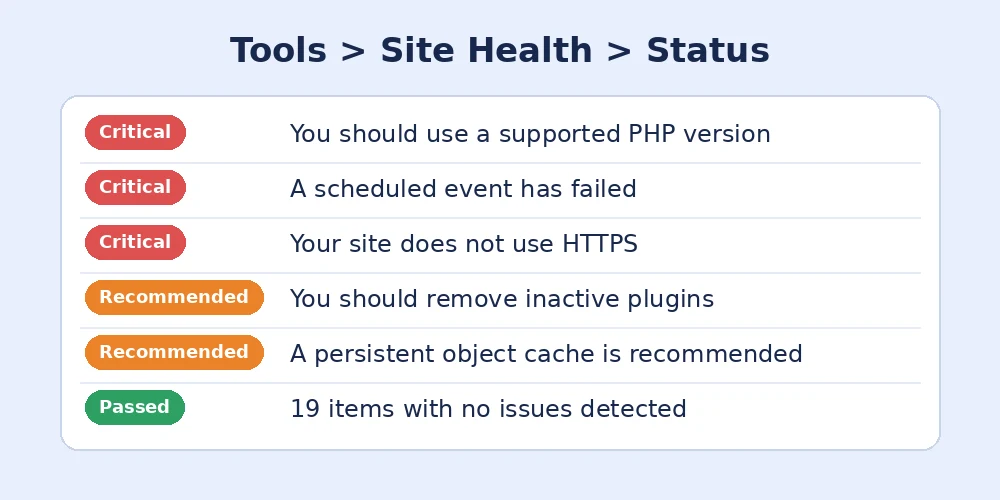
You will find it under Tools > Site Health. WordPress added it in version 5.2, and the official Site Health screen documentation describes both tabs. The Status tab runs a set of tests and groups the results into three levels:
- Critical issues: things that can affect security or stop the site from working properly. I fix these first.
- Recommended improvements: worth doing, but the site will not fall over without them.
- Passed tests: everything that already looks fine.
The WordPress Site Health Info tab is just as useful. It lists the WordPress version, PHP version, database server, memory limit, active theme, plugins and file paths. When a client asks me to look at a problem, I ask them to use the “Copy site info to clipboard” button and paste it to me. That one block of text saves a lot of back and forth.
How I fix common WordPress Site Health warnings
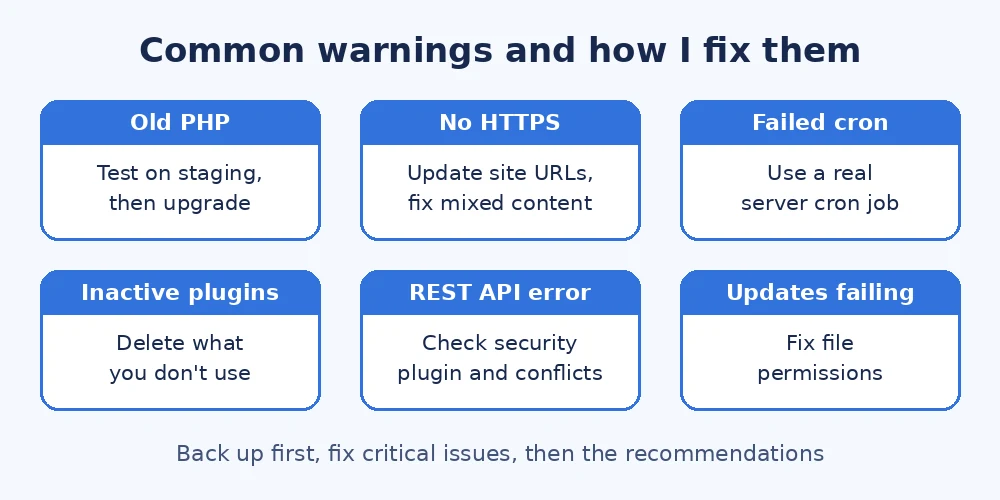
Before changing anything, I take a full backup of the files and database. Most of these fixes are safe, but a PHP upgrade or plugin cleanup can still surprise you, and a backup that I know restores correctly is my safety net. I explain how I test that in my post on WordPress backups that actually restore.
1. “Your site is running an outdated version of PHP”
This is the warning I see most often, and it matters. Old PHP versions are slower and stop getting security fixes. You can check which versions are still supported on the PHP supported versions page. I never switch PHP on a live site blindly. I test on staging first, check the error log, and only then change the version in the hosting panel. My guide to a safe WordPress PHP update walks through the full process.
2. “Your site does not use HTTPS”
If the site has an SSL certificate but WordPress still thinks it is on HTTP, I update the WordPress Address and Site Address under Settings > General to use https, then fix any old http links in the content. If you see padlock warnings after that, my post on fixing mixed content in WordPress covers the cleanup.
3. “A scheduled event has failed” or “is late”
This means WP-Cron is not running reliably, so things like scheduled posts, backups and WooCommerce emails may be delayed. On low-traffic sites I usually replace the default WP-Cron with a real server cron job. I explain exactly how in my post on WordPress cron jobs that stop running.
4. “You should remove inactive plugins” and “inactive themes”
Deactivated plugins and themes still sit on the server, and if they have a security hole, they can still be exploited. I delete any plugin the client is not using and keep only the active theme, its parent theme if it is a child theme, and one default WordPress theme as a fallback. This is an easy win in the WordPress Site Health report and makes the site cleaner to maintain.
5. “The REST API encountered an error” or “a loopback request failed”
These two tests check whether the site can talk to itself. When they fail, the block editor, plugin updates and scheduled tasks can break in odd ways. The usual causes I find are a security plugin or firewall rule blocking requests, a caching or CDN setting, or a plugin conflict. I pause the security plugin first, run the test again, and if it passes, I adjust that plugin’s rules instead of leaving it off. If not, I disable plugins one by one, the same method I use to find a WordPress plugin conflict.
6. “A persistent object cache is recommended”
WordPress shows this on sites it thinks would benefit from Redis or Memcached. It is a recommendation, not a fault. On a busy WooCommerce store I enable object caching if the host supports it. On a small brochure site with good page caching, I often leave it, because adding Redis to cheap hosting can cause more problems than it solves.
7. “Background updates are not working as expected”
This usually points to file permissions or a version control folder on the server. I check that folders are 755 and files are 644, and that the web server user owns them. My post on WordPress file permissions explains the settings I use.
WordPress Site Health warnings I do not chase
Not every item needs action. Some hosts disable certain PHP modules on purpose, and a missing optional module like imagick is fine if images are processed correctly with GD. A page cache warning can also appear on sites that use a server-level cache WordPress cannot detect. I look at what the warning really means for that site rather than trying to turn every test green for the sake of it.
Keeping WordPress Site Health green
- Check it monthly: I open Tools > Site Health as part of every maintenance visit.
- Test updates on staging: PHP, theme and plugin changes go through staging before they reach the live site.
- Remove what you do not use: fewer plugins means fewer warnings and fewer security risks.
- Keep the hosting up to date: many WordPress Site Health issues come from old server software, so a good host makes a big difference.
Final thoughts
WordPress Site Health is not a scary error page. It is a simple checklist WordPress gives you for free, and fixing the critical items usually makes a site faster, safer and easier to update. Start with PHP, HTTPS and failed scheduled events, then tidy up inactive plugins and themes. If your WordPress Site Health screen shows issues you are not sure about, feel free to get in touch and I will be happy to take a look.