Wrong WordPress file permissions cause more trouble than most people expect. One day plugin updates ask for FTP details, the next day image uploads fail with “unable to create directory”, and sometimes a site gets hacked because a folder was left wide open with 777. I check file permissions on almost every site I work on, because it takes a few minutes and it rules out a whole group of problems.
In this post I will explain what the numbers mean, the WordPress file permissions I set by default, how I fix them safely over SSH or FTP, and the mistakes I see most often.
What WordPress file permissions actually mean
Every file and folder on a Linux server has an owner, a group, and three sets of permissions: one for the owner, one for the group, and one for everyone else. Each set can allow read (4), write (2) and execute (1). Add them up and you get the familiar three-digit numbers.
- 644 means the owner can read and write, and everyone else can only read. This is the normal setting for files.
- 755 means the owner can read, write and enter the folder, and everyone else can read and enter it. This is the normal setting for folders.
- 600 or 640 is stricter and is what I use for wp-config.php.
- 777 means anyone on the server can write to it. I never leave anything at 777.
The number is only half of the story. Ownership matters just as much. If the files belong to one user but PHP runs as a different user, WordPress cannot write to its own folders even with correct numbers. That is the usual reason WordPress suddenly asks for FTP credentials when you try to update a plugin.
Signs your file permissions are wrong
These are the symptoms that make me check permissions first:
- WordPress asks for FTP or SSH connection details when you install or update a plugin.
- Media uploads fail with “unable to create directory wp-content/uploads” or “the uploaded file could not be moved”.
- Theme or plugin updates fail halfway and leave the site in maintenance mode.
- Caching or SEO plugins say they cannot write to .htaccess or their cache folder.
- The site shows a blank page or a 403 Forbidden error after a migration.
- A security scanner reports writable core files or folders set to 777.
If you see a blank page, permissions are only one possible cause. My guide on the WordPress white screen of death walks through the other checks I do.
The WordPress file permissions I set by default
This is my standard setup on a typical shared or VPS host where PHP runs as the same user who owns the files:
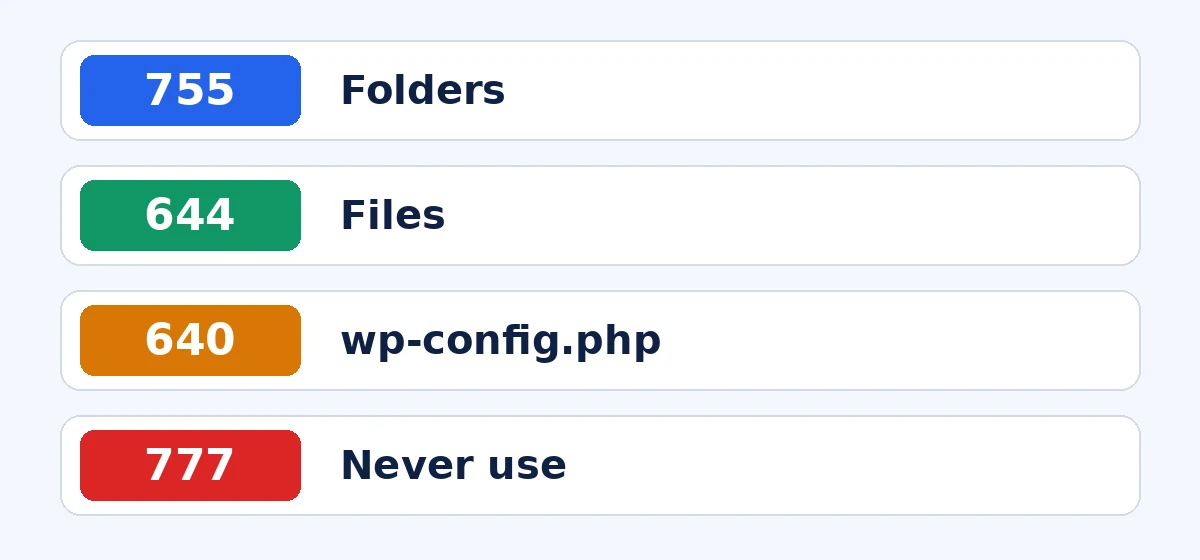
- All folders: 755
- All files: 644
- wp-config.php: 640 (or 600 if the host allows it and the site still loads)
- .htaccess: 644
- wp-content/uploads: 755, owned by the same user PHP runs as
The official WordPress documentation on file permissions recommends the same baseline, and it explains the different hosting setups in more detail. On managed WordPress hosting the host usually sets this for you, and I leave it alone unless something is clearly broken.
How I fix WordPress file permissions safely
Before changing anything I take a full backup of the files and the database. Permission changes are easy to reverse, but ownership changes on the wrong folder can take a site down. If you are not sure your backups work, read how I make WordPress backups that actually restore first.
Option 1: Fix permissions over SSH
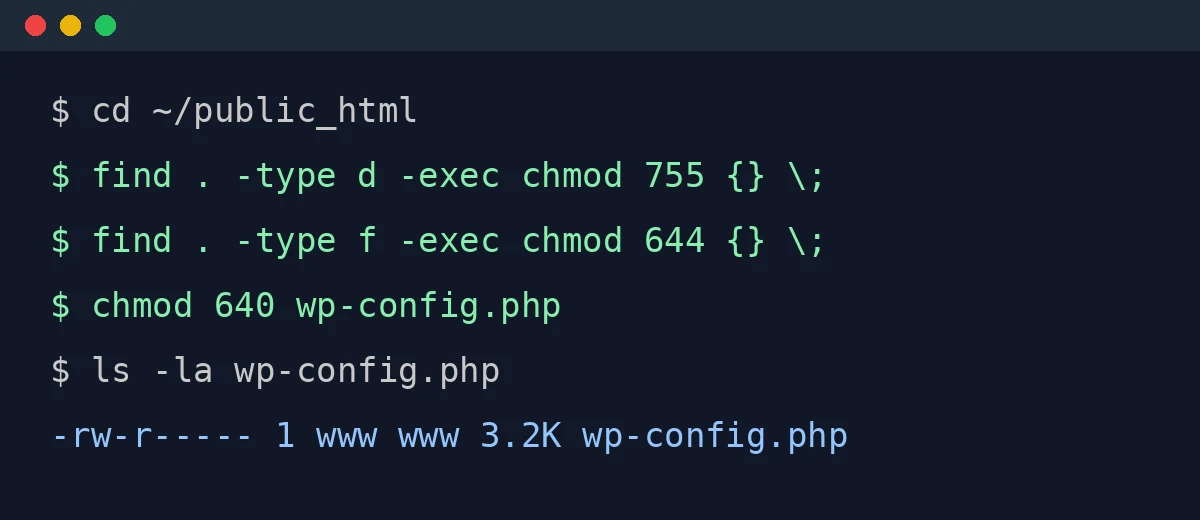
If you have SSH access, this is the fastest and most reliable way. I go to the WordPress root folder (the one with wp-config.php in it) and run:
find . -type d -exec chmod 755 {} \;
find . -type f -exec chmod 644 {} \;
chmod 640 wp-config.php
The first line sets every folder to 755, the second sets every file to 644, and the third locks down wp-config.php. Then I check ownership with ls -la. If the files belong to root or a different user from the one PHP runs as, I ask the host which user is correct before running chown. Guessing the user here is how sites end up broken.
Option 2: Fix permissions with FTP or the file manager
Without SSH, I use FileZilla or the hosting file manager. In FileZilla, right-click the WordPress folder, choose File permissions, enter 755, tick “Recurse into subdirectories” and pick “Apply to directories only”. Then repeat with 644 and “Apply to files only”. Finally I set wp-config.php to 640 by hand. On a big site with thousands of images this can take a while, so I let it run and do not close the window.
Common file permission mistakes I see
Setting everything to 777. This is the most common “fix” I find on sites. It makes upload errors go away, but it also lets any process on the server write to your files. On shared hosting that can include other accounts. If you have used 777 to get past an error, put it back to 755 or 644 and fix the ownership instead.
Fixing numbers but not ownership. After a migration or a restore done as root, files often belong to the wrong user. The numbers look correct, but WordPress still cannot write. Checking the owner with ls -la saves a lot of time here.
Making wp-config.php too strict. Setting it to 400 or 440 works on some hosts and gives a 500 error on others. I start at 640 and only go stricter if the site keeps working.
Forgetting the uploads folder. If wp-content/uploads or the current year and month folder is not writable, every image upload fails. I check this one first whenever the media library throws errors.
Changing permissions on a live store during busy hours. On a WooCommerce store a recursive change across thousands of files can slow the site for a few minutes. I do it during a quiet time.
Extra hardening once permissions are right
Once the basics are correct, I add a few small things that make the site harder to tamper with:
- Add
define( 'DISALLOW_FILE_EDIT', true );to wp-config.php so nobody can edit theme or plugin code from the dashboard. - Block PHP from running inside wp-content/uploads with a small rule in the server config or an .htaccess file in that folder.
- Remove old, unused plugins and themes so there is less code to keep writable and updated.
- Run a security scan after the change to confirm nothing is still set to 777.
The WordPress hardening guide covers more options if you want to go further.
A quick WordPress file permissions checklist
- Take a full backup of files and database.
- Set folders to 755 and files to 644.
- Set wp-config.php to 640.
- Check that files are owned by the user PHP runs as.
- Make sure wp-content/uploads is writable.
- Test a plugin update and an image upload.
- Remove any 777 permissions and add DISALLOW_FILE_EDIT.
Getting WordPress file permissions right is not exciting work, but it fixes update errors, upload failures and a fair number of security problems in one go. If you have gone through this list and WordPress still asks for FTP details or uploads still fail, the problem is usually ownership or the hosting setup, and that is something I am happy to look at for you.