
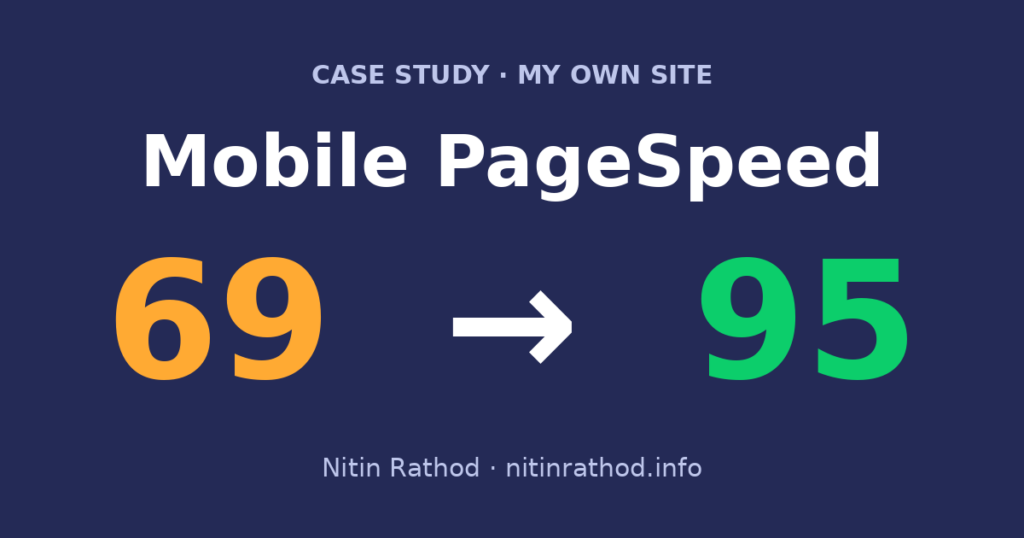
I fix slow WordPress sites for clients all the time, so it made sense to look hard at my own. This is my WordPress speed optimization case study, using my own site. On October 6, 2026, my homepage scored 69 for performance on mobile in PageSpeed Insights. Four days later it scored 95. I didn’t redesign anything, change any copy, swap page builders or edit a single plugin file. This post covers what I changed, what I left alone, and the before and after numbers.
The starting point
My site runs on WordPress with the Astra theme and Elementor. It also uses Contact Form 7 for the contact form, MonsterInsights for Google Analytics, WP Fastest Cache for page caching and Code Snippets for small bits of custom code. It’s a very normal setup, and that’s why I think it makes a useful WordPress speed optimization case study.
Desktop already looked fine at 89. Mobile was the problem. PageSpeed tests mobile on an emulated Moto G Power over a slow 4G connection, and that’s where my homepage struggled:
- Performance: 69
- Largest Contentful Paint (when the main hero content finishes loading): 5.3 s
- Speed Index (how quickly the page visibly fills in): 8.0 s
- First Contentful Paint: 2.7 s
Total Blocking Time (10 ms) and layout shift (0.001) were already fine. So the issue wasn’t heavy JavaScript freezing the page. The page was simply slow to show its main content on a phone.
My rules for this job
For this WordPress speed optimization case study, I set myself the same rules I use on client sites:
- No redesign and no copy changes. The page should look and read the same afterwards.
- No new page builder and no “speed plugin” stacked on top of the others.
- No editing plugin or theme files, because updates would wipe those changes.
- Every tweak goes in Code Snippets or the Customizer’s Additional CSS, so I can switch it off in seconds if something breaks.
What I changed
1. Removed the fade-in on the hero
The hero section had an Elementor entrance animation that faded it in. It looks nice, but the main content stays invisible until the animation runs, and that pushes LCP back. I set the hero animation to None. Nobody misses a fade they never noticed.
2. Stopped loading fonts and icons the page doesn’t use
Elementor was still loading its old Font Awesome 4 compatibility shim, which I turned off in Elementor’s settings. I also stopped Google Fonts and Font Awesome from loading where they weren’t used. The fonts now come from my own server through Astra’s local font option, so there’s no extra trip to Google before the text shows.
3. Loaded plugin files only where they’re needed
Contact Form 7 loads its CSS and JavaScript on every page by default. I limited it to the contact page, the only page with a form. I also stopped the Starter Templates plugin from loading its files on the front end, since it’s only useful inside wp-admin.
4. Delayed Google Analytics until the visitor interacts
MonsterInsights loads the Google Analytics script as the page opens. I changed that with a small snippet so the script loads on the first scroll, tap, click or key press. Tracking still works. I checked that the Analytics request still fires as soon as someone interacts with the page. It just doesn’t compete with the page content while the page is loading.
5. Preloaded the hero image and kept it out of lazy loading
The hero image is the biggest thing on screen, so I want the browser to fetch it as early as possible. I added a preload for it and made sure it is never lazy-loaded. Lazy loading is great for images further down the page but bad for the first thing a visitor sees.
6. Removed jquery-migrate
jquery-migrate is only there to support old jQuery code. I removed it, then checked the browser console across the site and tested the contact form. Nothing complained, so it stayed off. If anything had broken, I would have put it back.
7. Fixed caching for mobile visitors
This one surprised me. WP Fastest Cache has a separate Mobile option, and with it enabled, mobile visitors weren’t getting the normal cached page. I unchecked it, cleared the cache and confirmed that phones now get the same cached page as desktop. It was a small setting, but an important one.
8. A smaller hero background on mobile
Phones don’t need a desktop-sized background image. I set a smaller version for small screens so mobile visitors download less before the hero appears.
9. Accessibility fixes along the way
PageSpeed also flagged a few accessibility issues, so I fixed those too:
- Added proper ARIA attributes to the FAQ accordion, so screen readers know what’s open and what’s closed.
- Used a darker link colour so links have enough contrast against the background.
- Made links inside paragraphs semi-bold, so they stand out by more than colour alone, without adding underlines everywhere.
WordPress Speed Optimization Case Study Results
Here are the PageSpeed Insights numbers (Lighthouse 13.5.0) for the homepage. The before run is from October 6, 2026 and the after run is from October 10, 2026.
| Metric | Mobile before | Mobile after | Desktop before | Desktop after |
|---|---|---|---|---|
| Performance | 69 | 95 | 89 | 98 |
| Accessibility | 96 | 100 | 96 | 100 |
| Best Practices | 100 | 100 | 100 | 100 |
| SEO | 100 | 100 | 100 | 100 |
| First Contentful Paint | 2.7 s | 1.1 s | 0.8 s | 0.3 s |
| Largest Contentful Paint | 5.3 s | 1.8 s | 1.1 s | 0.4 s |
| Total Blocking Time | 10 ms | 0 ms | 20 ms | 0 ms |
| Cumulative Layout Shift | 0.001 | 0 | 0 | 0.005 |
| Speed Index | 8.0 s | 5.6 s | 3.3 s | 1.6 s |
PageSpeed before and after
95
Mobile performance
was 69
98
Desktop performance
was 89
1.8s
Mobile LCP
was 5.3 s
PageSpeed Insights, homepage, Oct 6 vs Oct 10, 2026
The biggest change is mobile LCP, which went from 5.3 s to 1.8 s. The main content now shows up in well under half the time on a slow phone connection. Accessibility went to 100 on both mobile and desktop.
A quick note on scores: PageSpeed results move a few points between runs, even when nothing on the site has changed. I've seen 100 on some runs. I'm quoting 95 in this WordPress speed optimization case study because that's the saved report, and I'd rather show a number you can check than my best run.
What I didn't fix (yet)
I want this WordPress speed optimization case study to be honest about what's still there:
- Server response time. The server takes around 860 ms to start sending the page. That's on the hosting side, and no WordPress setting will fix it. Better hosting would help, but I didn't change hosts for this.
- Some render-blocking CSS. A few stylesheets still load before the page can show. I could inline critical CSS, but on an Elementor site that gets fragile quickly, and the gain was not worth the risk of a broken layout.
- Speed Index on mobile is still amber. It improved from 8.0 s to 5.6 s, but it isn't green. Most of what's left comes from the two points above.
Desktop layout shift also moved from 0 to 0.005. That's tiny and well inside the green range, but I'm including it since it's in the report.
What you can take from this
None of this was clever. Most slow WordPress sites I work on have the same problems: animations hiding the main content, fonts and plugin files loading where nobody uses them, tracking scripts competing with the page, the main image being lazy-loaded, and caching that isn't working the way people think. If you want the general list I go through first, I wrote it up in why your WordPress site feels slow and the fixes I try first.
If your own site scores badly on mobile and you'd like me to look at it, I offer WordPress speed optimization without redesigning your site or piling on plugins. Just send me your site address and I'll tell you what I see.