
A WordPress 500 error is one of the most stressful messages a site owner can see, because it tells you almost nothing. The page just says “500 Internal Server Error” or “There has been a critical error on this website”, and the whole site, sometimes including wp-admin, stops loading. In this post I share the exact checks I use to find and fix a WordPress 500 error on client sites, in the order that usually gets the site back online fastest.
I am a freelance WordPress developer in Surat, and a 500 error is one of the most common emergency jobs I get. The good news is that the cause is almost always one of a handful of things, and you can work through them calmly once you know where to look.
What a WordPress 500 error actually means
A 500 status code means the server hit a problem it could not handle while building the page. The MDN reference for the 500 status code describes it as a generic catch-all, which is exactly why it feels so vague. On a WordPress site, the real cause is usually one of these:
- A PHP fatal error from a plugin or theme, often right after an update.
- A broken or corrupted
.htaccessfile. - PHP running out of memory or hitting a time limit.
- A PHP version the site’s code is not compatible with.
- Wrong file or folder permissions on the server.
Before changing anything, I take a backup of the files and database from the hosting panel if the host allows it. That way, every fix I try can be undone.
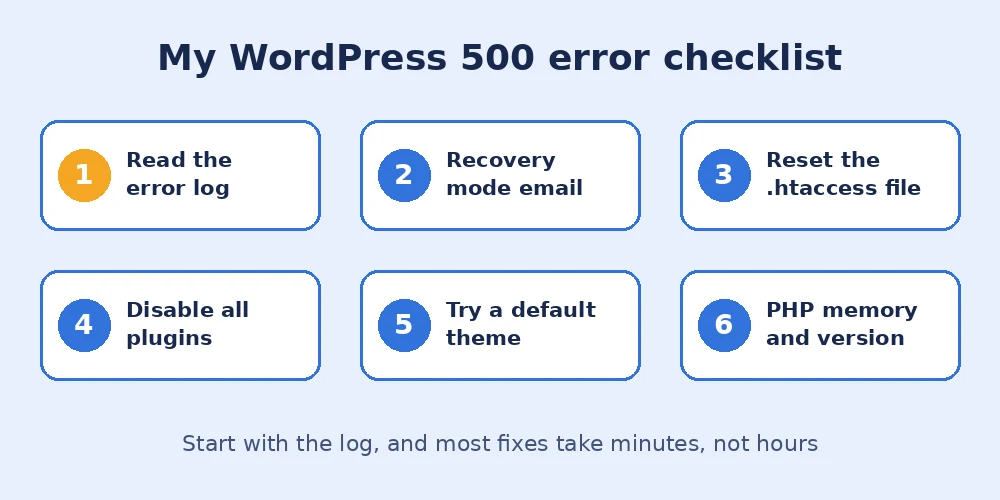
How I fix a WordPress 500 error, step by step
1. Read the error log first
Guessing wastes time, so the first thing I do is look for the actual error message. Most hosting panels have an “Errors” or “Logs” section, and many servers also write an error_log file in the site’s root folder. If neither shows anything useful, I turn on WordPress debug logging by adding these lines to wp-config.php, above the line that says “That’s all, stop editing”:
define( 'WP_DEBUG', true );
define( 'WP_DEBUG_LOG', true );
define( 'WP_DEBUG_DISPLAY', false );
Then I reload the broken page and open wp-content/debug.log. A line starting with “PHP Fatal error” usually names the exact file, and the file path tells me which plugin or theme is responsible. The official WordPress debugging guide explains each of these constants. I always switch debugging off again once the site is fixed.
2. Check for a WordPress recovery mode email
Since WordPress 5.2, when a plugin or theme causes a fatal error, WordPress sends an email to the admin address with a special recovery mode link. That link lets you log in to wp-admin with the faulty plugin paused, so you can deactivate or update it. If the client’s admin email works, this is the quickest fix for a WordPress 500 error, so I always ask them to check their inbox and spam folder.
3. Replace the .htaccess file
A corrupted .htaccess file is a classic cause of a 500 error, especially after installing a security or caching plugin that writes its own rules. Using the file manager or FTP, I rename .htaccess to .htaccess-old and reload the site. If it loads, I create a fresh file with the default WordPress rules, which are listed on the WordPress Apache and .htaccess page, and then re-save the permalinks under Settings > Permalinks.
4. Deactivate plugins without wp-admin
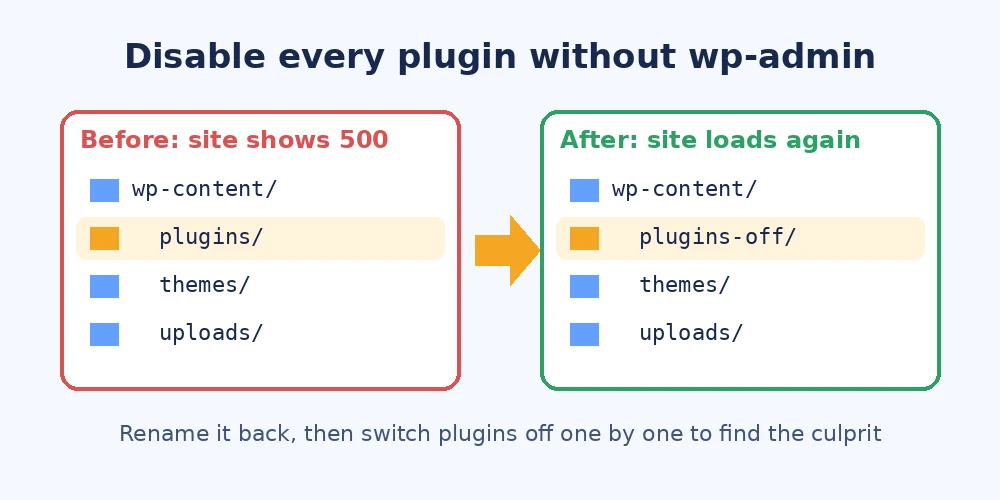
If the log points to a plugin, or I still cannot tell, I rename the wp-content/plugins folder to plugins-off. WordPress then treats every plugin as deactivated. If the WordPress 500 error disappears, I rename the folder back and rename each plugin’s folder one at a time until the error returns. That last one is the culprit. I explain this method in more detail in my post on finding a WordPress plugin conflict.
5. Switch to a default theme
When plugins are not the cause, the theme often is, especially a custom functions.php edit that went wrong. I rename the active theme’s folder inside wp-content/themes, and WordPress falls back to a default theme such as Twenty Twenty-Five if it is installed. If the site loads, I know the problem is in the theme code and fix it there instead of on the live site.
6. Raise the PHP memory limit
An “Allowed memory size exhausted” line in the log means PHP ran out of memory. I raise the limit in wp-config.php with define( 'WP_MEMORY_LIMIT', '256M' ); and, if needed, in the hosting panel’s PHP settings. I cover the full process, and when more memory is the wrong answer, in my guide to the WordPress memory limit.
7. Check the PHP version and file permissions
If the error started right after the host upgraded PHP, an old plugin or theme may use code that newer PHP versions no longer allow. I temporarily switch back to the previous PHP version in the hosting panel to confirm, then update or replace the outdated code. My post on a safe WordPress PHP update covers how I test this properly.
Finally, I check permissions. Folders should usually be 755 and files 644, with wp-config.php tighter. Wrong permissions after a migration can easily trigger a WordPress 500 error on some servers.
When the WordPress 500 error is on the server side
If none of these steps help and the log shows nothing from WordPress at all, the problem may be on the server itself: a resource limit on cheap shared hosting, a broken PHP handler, or a misconfigured server module. At that point I contact the host’s support with the exact time the error happens and any log lines I found. A specific message gets a much faster answer than “my site is down”.
How I prevent it from happening again
- Test updates on staging: most WordPress 500 error cases I fix appear right after a plugin, theme or PHP update.
- Keep working backups: a recent backup turns a stressful outage into a ten-minute restore.
- Avoid editing code in the live theme editor: one missing bracket in
functions.phpcan take the whole site down. - Use uptime monitoring: so you hear about the error before your customers do.
Final thoughts
A WordPress 500 error looks scary, but it is rarely a mystery once you read the error log. Check the log, try the recovery email, reset .htaccess, then isolate plugins and the theme before touching server settings. If your site is showing a 500 error and you would like me to look at it, feel free to get in touch and I will help you get it back online.