
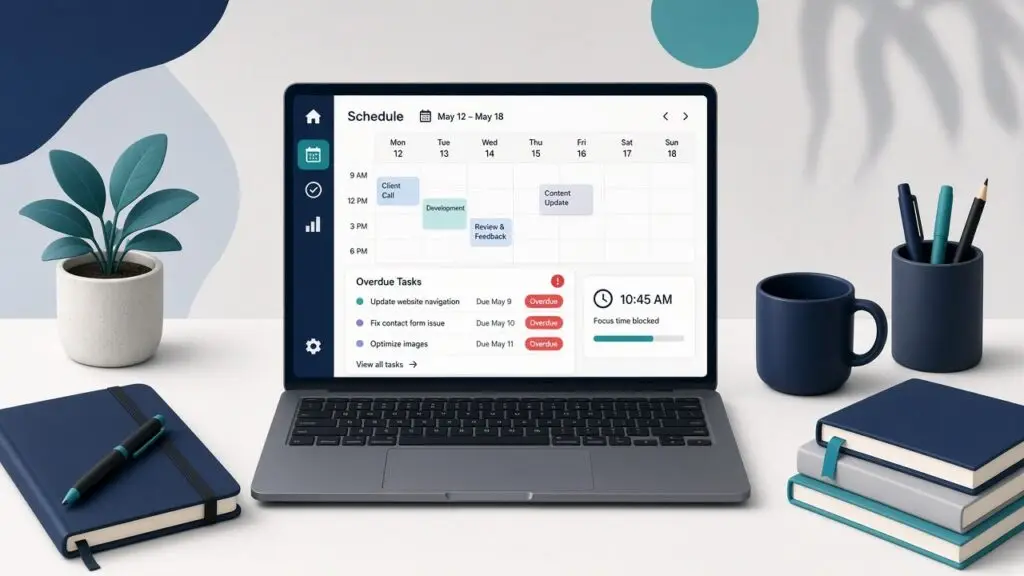
When a scheduled post stays in limbo, a backup never starts, or WooCommerce stock emails arrive hours late, I usually look at wordpress cron jobs before I blame the plugin. WordPress uses a pseudo-cron that runs when someone visits the site. On quiet sites, behind aggressive page cache, or after a hosting change, that queue can stall without an obvious error on the front end.
I maintain WordPress sites from Surat for businesses and stores, so I see missed schedules regularly. Below is how I confirm cron is the problem, how I test and repair wordpress cron jobs safely, and how I keep scheduled work reliable afterward.
What broken wordpress cron jobs look like
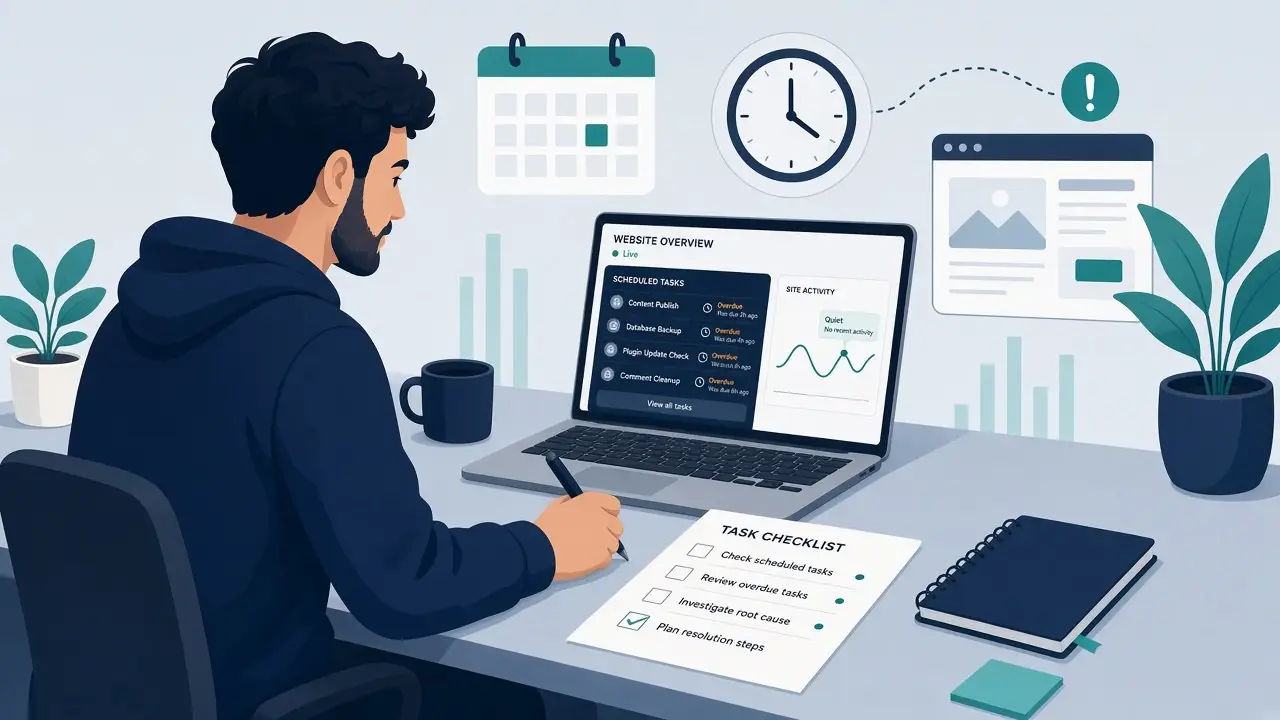
I do not rebuild the whole stack when one task is late. I look for a pattern first.
- Scheduled posts stay “Scheduled” past their publish time
- Backup, security scan, or newsletter plugins say the next run never happens
- WooCommerce or membership plugins miss expiry, stock, or reminder emails
- Tools that list cron events show overdue hooks with old next run times
- The site has low traffic, full-page caching for almost every URL, or recently moved hosts
If the site is simply slow for visitors, I start with performance checks instead — the same order I use in why a WordPress site feels slow. Cron problems are about work that should have run in the background, not about page weight alone.
How WordPress cron is supposed to work
By default, WordPress checks for due events when a page loads. That is convenient on shared hosting, but it is not a real system timer. If nobody visits, or every visit is served from a static cache that never boots PHP, due events wait. Official WordPress documentation on WP-Cron explains the same model: schedules are stored in the database and claimed on requests unless you replace them with a real server cron.
I keep that distinction clear for clients. Fixing wordpress cron jobs often means either restoring healthy request-based checks or moving critical schedules to the host’s crontab so they fire even when traffic is quiet.
Quick checks before I change wordpress cron jobs
I gather evidence before editing wp-config.php or the server crontab.
- Confirm the clock and timezone in WordPress Settings → General match the business expectation
- Note the last successful scheduled action (publish, backup, or email) and what changed after that
- Check whether a caching plugin or CDN caches almost every URL for logged-out visitors
- Look for
DISABLE_WP_CRONalready set to true inwp-config.phpwith no matching server cron - List overdue events with a cron manager plugin or WP-CLI
wp cron event listwhen CLI is available
If a recent plugin update coincided with the stall, I also keep plugin conflict isolation in mind — the same calm approach as my guide to a WordPress plugin conflict.
Fixes I use for wordpress cron jobs that stop firing
I change one layer at a time and retest a known due event after each step.
1. Let PHP run on at least one uncached hit
Full-page cache is good for speed, but if every public URL is static HTML, WP-Cron may never wake up. I exclude a harmless ping URL or rely on a real server cron instead of hoping random visits spawn PHP. Cart, checkout, account, and login pages should already stay dynamic on stores — the same idea I use in my WooCommerce launch checklist.
2. Spawn cron from the host on a schedule
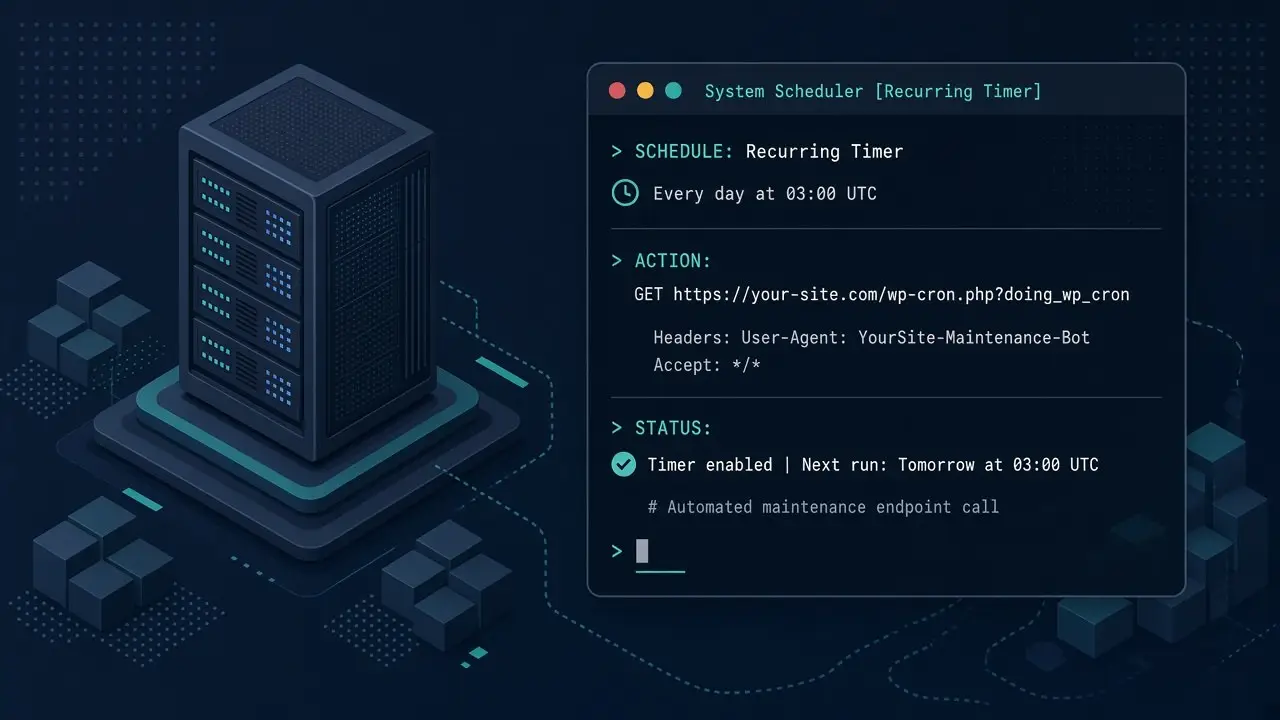
For sites that need reliable wordpress cron jobs, I disable the visit-based runner and call wp-cron.php from the server every five to fifteen minutes. In wp-config.php above the stop-editing line:
define( 'DISABLE_WP_CRON', true );
Then I add a real cron entry that hits https://example.com/wp-cron.php?doing_wp_cron (or uses WP-CLI wp cron event run --due-now). WordPress documents DISABLE_WP_CRON and related constants in their guide to editing wp-config.php; for the scheduling APIs I stick to the developer handbook on cron and verify the host’s crontab syntax with the provider’s docs.
3. Clear a stuck or huge cron array
Sometimes the cron option in the database grows corrupt or enormous after failed plugins. On staging I inspect it, remove clearly broken duplicate hooks, and reschedule the important ones. I never wipe the entire option on a live store without a backup and a list of what must be recreated.
4. Fix the loopback / HTTP self-request
WP-Cron often triggers a loopback HTTP request to the same site. If the server cannot reach its own URL (bad DNS, TLS mismatch, firewall, or auth wall), schedules stall. I test a loopback from the host, fix SSL or DNS first, then retry a due event. Mixed HTTP/HTTPS confusion can play a role here too — related to how I approach mixed content warnings on WordPress after URL changes.
How I test that wordpress cron jobs are healthy again
- Schedule a private test post a few minutes ahead, or run one due event manually
- Watch the event leave “overdue” and complete without waiting for a homepage visit
- Confirm backup, email, or WooCommerce hooks that mattered to the client
- Purge page cache after config changes and retest once more
- Leave a short note in the maintenance log: visit-based cron, server cron interval, and who owns the crontab
If the site went through a migration before cron died, I also confirm home/siteurl and HTTPS settings — the same careful post-move checks I use when fixing a WordPress redirect loop.
How I keep wordpress cron jobs reliable
- Prefer real server cron on low-traffic or heavily cached sites
- Do not set
DISABLE_WP_CRONunless the host job is already in place - After plugin removals, check for orphaned schedules that error on every run
- Keep timezone and “next run” expectations aligned with the client’s business hours
- Include a quick cron smoke test in routine updates and backup verification
That last point fits under ongoing WordPress maintenance and security: updates, backups you have restored once, and a short checklist so scheduled work still fires after cache or hosting changes. For deeper background on the APIs plugins use, the official handbook page on scheduling WP-Cron events is the reference I point developers to.
Quick wordpress cron jobs checklist
- Confirm symptoms: missed publishes, overdue hooks, late plugin emails
- Check timezone, recent host/cache changes, and
DISABLE_WP_CRON - Ensure PHP can run somehow — uncached hit or real server cron
- Fix loopback/DNS/SSL if self-requests fail
- Repair or reschedule a bloated cron option only on staging first
- Retest a known due event without relying on a homepage visit
- Document whether cron is visit-based or server-based
Missed schedules feel random until you see that wordpress cron jobs were never given a reliable wake-up. If your posts, backups, or store emails are slipping and you want a second pair of hands from Surat, email me at rnitinb@gmail.com or use the contact page — I am happy to audit cron, cache exclusions, and the host timer so the queue runs on time again.