
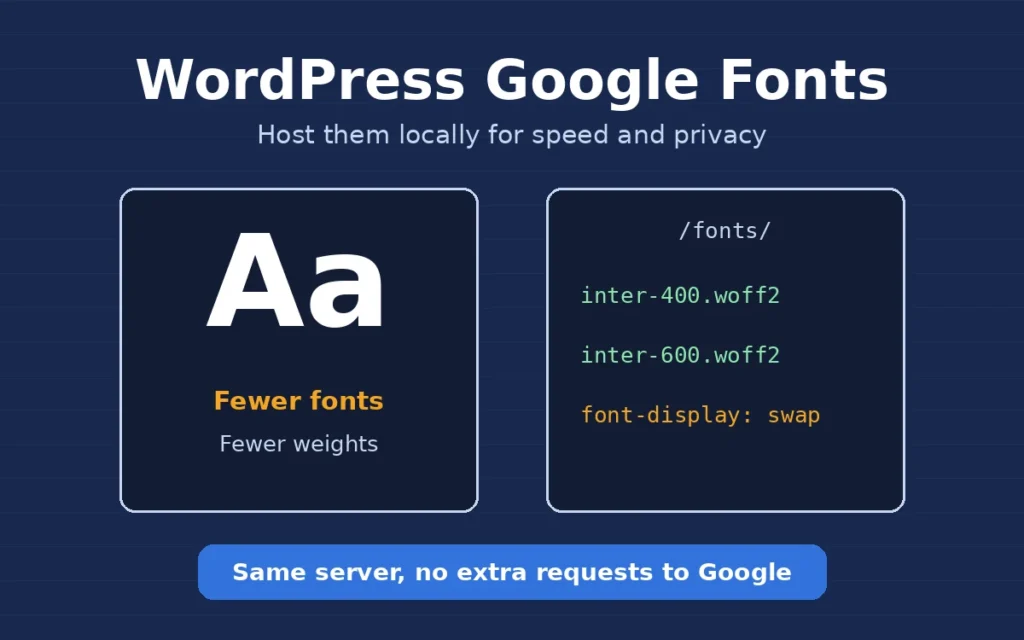
WordPress Google Fonts are one of the quiet reasons a site feels slow on mobile. Most themes and page builders load fonts straight from Google’s servers, which means extra connections, an extra CSS file and often five or six font weights nobody actually uses. In this post I explain how I check which WordPress Google Fonts a site is loading, why I usually host them locally, and the exact steps I follow on client sites.
I am a freelance WordPress developer in Surat, and fonts are one of the first things I look at in any speed review.
Why WordPress Google Fonts slow a site down
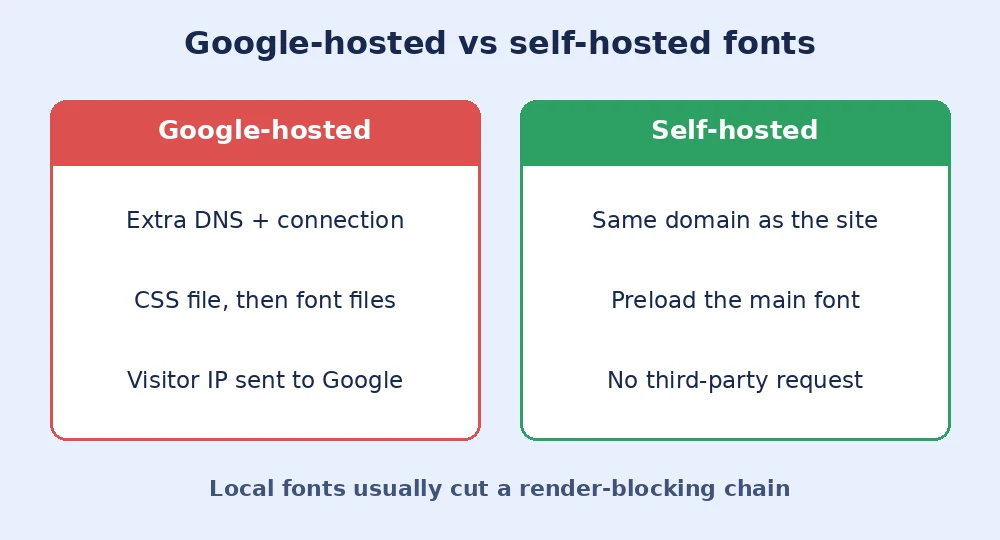
When a page uses Google-hosted fonts, the browser has to look up and connect to fonts.googleapis.com, download a CSS file, then connect to fonts.gstatic.com and download the font files. That chain sits on the critical path, so text can appear late or jump when the font finally swaps in. On top of that, many themes request every weight from 300 to 800 plus italics, even when the design only uses two.
There is also a privacy side. Loading fonts from Google sends each visitor’s IP address to a third party, and for sites with European visitors that has led to real GDPR complaints. Hosting the files on your own server removes that request completely.
How I check which fonts a WordPress site loads
I open the site in Chrome, go to DevTools, open the Network tab, filter by “Font” and reload the page. Every font file is listed with where it came from and how big it is. I also search the page source for fonts.googleapis.com, because the request can come from the theme, Elementor or another page builder, a slider plugin, or even an old reCAPTCHA or map embed. Knowing every source matters, because if you only fix the theme, a plugin will still pull fonts from Google.
How I host WordPress Google Fonts locally
My process is the same on almost every site:
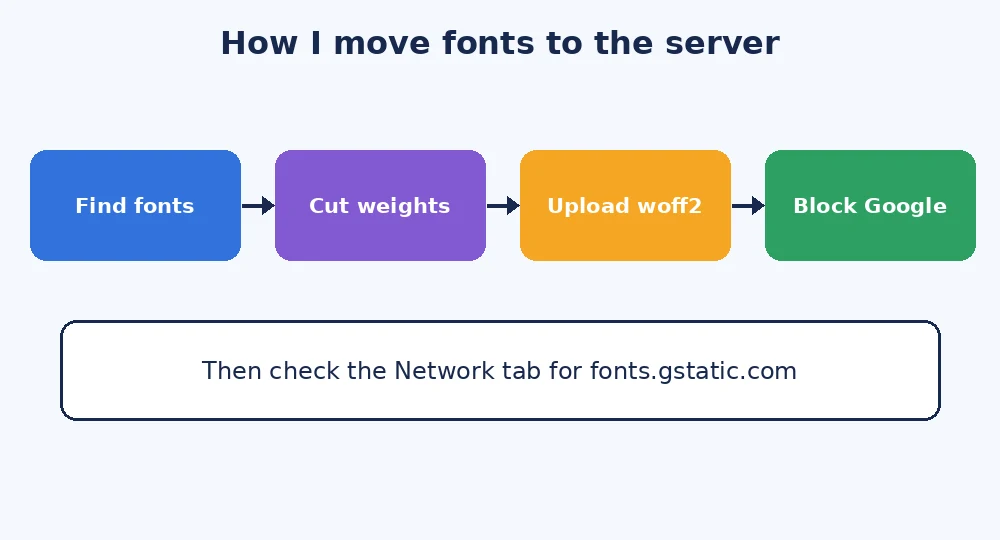
- Cut the list down. I check the design and keep only the families and weights it really uses, usually one or two families with two or three weights.
- Download woff2 files. I download only the woff2 format for the Latin subset. Every modern browser supports it and it is the smallest format.
- Upload and declare them. I put the files in a
/fonts/folder in the child theme and add@font-facerules withfont-display: swap, so text shows straight away in a fallback font. The stylesheet is loaded with wp_enqueue_style() rather than pasted into the header. - Preload the main font. I preload only the body text font, not every file, because preloading too much competes with images and CSS.
- Switch off the Google requests. In Elementor I turn on local Google Fonts or disable them, in Astra and similar themes I use the built-in local fonts option, and for stubborn plugins I dequeue their font styles in the child theme’s
functions.php.
@font-face {
  font-family: "Inter";
  src: url("fonts/inter-400.woff2") format("woff2");
  font-weight: 400;
  font-style: normal;
  font-display: swap;
}
If you are not using a child theme yet, my guide on setting up a WordPress child theme explains why your font files and code belong there instead of in the parent theme.
Testing after the change
After the switch I clear every cache layer, including the page cache, any CDN and the optimisation plugin, then reload with the Network tab open. There should be no requests to fonts.googleapis.com or fonts.gstatic.com left. I compare PageSpeed Insights before and after, and check the pages on a phone to make sure headings and buttons still use the right font. The MDN guide to font-display is a good reference if the text flashes or shifts more than you expect. Fonts are only one piece of speed, so I cover the bigger picture in my WordPress speed optimization case study.
Final thoughts
Handling WordPress Google Fonts well is simple: load fewer families and weights, host the woff2 files on your own server, use font-display: swap, preload only the main font and make sure no plugin still calls Google. It is a small change that helps speed scores and privacy at the same time. If you would like me to check the fonts and overall speed of your site, you can contact me.