
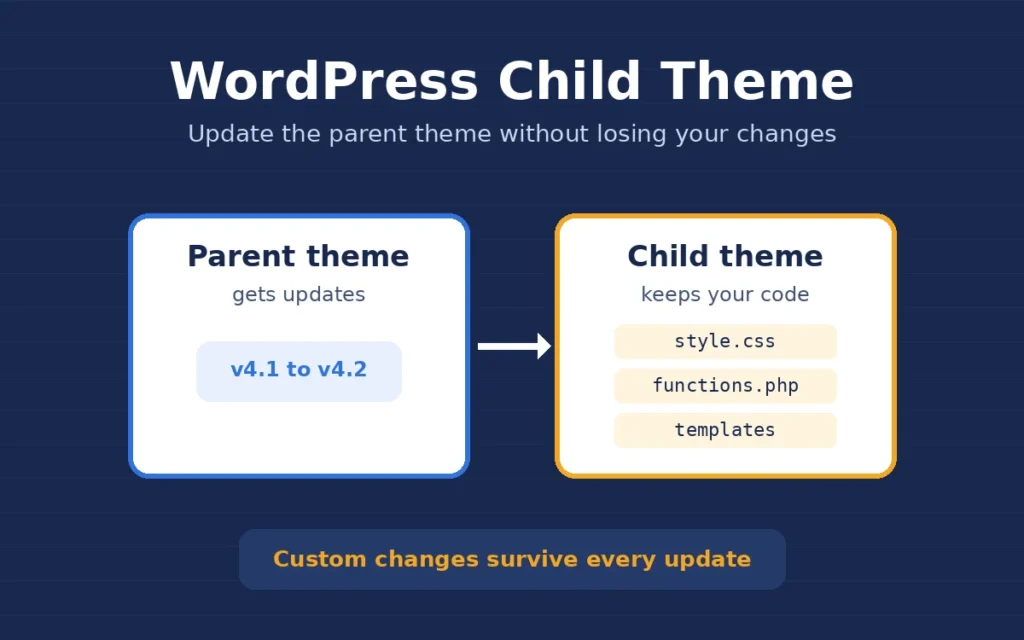
A WordPress child theme is the first thing I check for when a client tells me their design “broke after an update”. Very often someone edited the parent theme’s files directly, the theme updated, and every custom change was wiped out. In this post I explain what a WordPress child theme is, when I use one, how I set it up and the mistakes I avoid, so your customisations stay safe through every update.
I am a freelance WordPress developer in Surat, and most of the sites I build and maintain run on Astra, GeneratePress or a WooCommerce-ready theme. Whatever the theme, my rule is the same: I never edit the parent theme’s files.
What a WordPress child theme actually is
A child theme is a small theme that sits on top of another theme, called the parent. WordPress loads the parent theme first and then applies anything in the child theme over it. If the child theme has its own copy of a template file, WordPress uses that copy. If it does not, WordPress falls back to the parent’s file.
The big benefit is that the parent theme can be updated for security fixes and new features while your own CSS, functions and template changes stay untouched in a separate folder. The official WordPress child themes guide explains how the loading order works in more detail.
How I set up a WordPress child theme
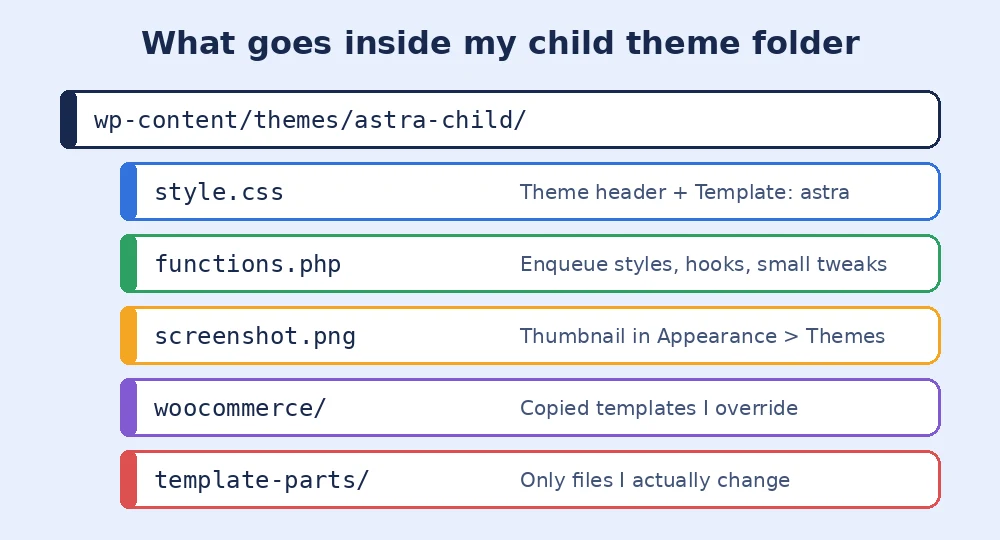
Many popular themes offer a ready-made child theme to download, and I use that when it exists. When it does not, I create one by hand. It only needs a folder and two files:
- A folder in
wp-content/themes/, for exampleastra-child. - style.css with a header that gives the theme a name and a
Template:line matching the parent theme’s folder name exactly. If that line is wrong, WordPress reports the theme as broken. - functions.php where I load the stylesheets with
wp_enqueue_style()and add small hooks. I do not use the old@importmethod in style.css, because it slows down page loading. - screenshot.png, which is optional, so the client can recognise the theme in Appearance, Themes.
Before I activate it on a live site, I test it on a staging copy. Switching themes can reset some Customizer settings and menu locations, so I note them first and check them again after activation. I follow the same safe process I described in my post on testing updates on a WordPress staging site.
Overriding templates in a WordPress child theme
To change a template, I copy only that one file from the parent into the child theme, in the same folder path, and edit the copy. For WooCommerce, template files go into a woocommerce folder inside the child theme. I keep the number of overrides as small as I can, because each copied file is one I must review when the parent or WooCommerce changes it.
WooCommerce shows outdated template overrides under WooCommerce, Status. I check that screen after every major update, because an old template copy can cause checkout and cart problems that look like plugin bugs.
When I don’t use a child theme
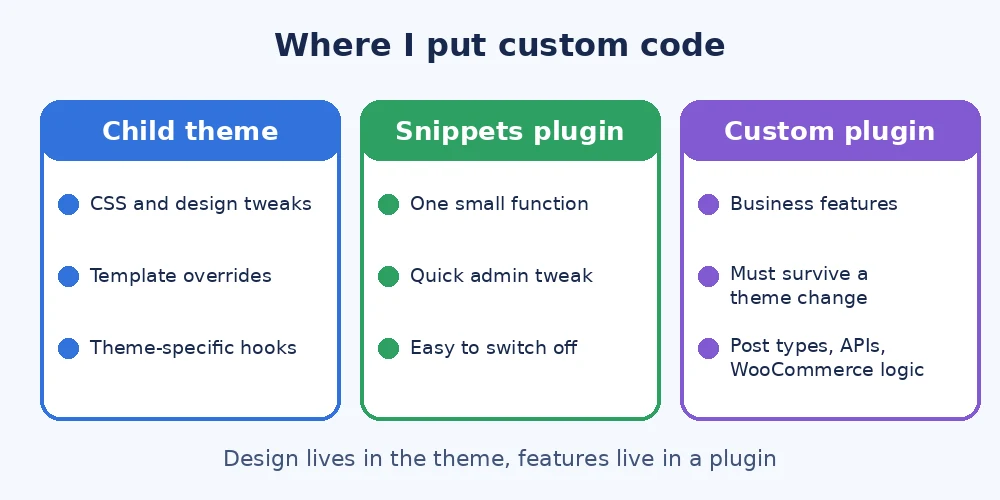
A child theme is not the right place for everything. This is how I decide where custom code goes:
- Child theme: design changes, CSS, template overrides and hooks that only make sense for this theme.
- Code snippets plugin: one or two small functions that a client may want to switch off without touching files.
- Custom plugin: business features such as custom post types, API connections or WooCommerce logic. These must keep working even if the client changes the theme next year. I wrote more about this choice in how I decide between a custom plugin and an existing one.
For small CSS-only changes on a block theme, the Site Editor’s styles or the Additional CSS panel can be enough, and a child theme may be extra work with no real gain.
Common child theme mistakes I fix
- Editing the parent theme directly, so the next update deletes the changes.
- A wrong
Template:name in style.css, which leaves the theme marked as broken. - Loading the parent stylesheet twice, which adds weight and can override the child’s CSS.
- Copying the whole parent theme into the child, which defeats the point of updates.
- Putting business-critical features in functions.php, so they vanish if the theme changes.
If your site has custom changes sitting inside the parent theme, or you are worried an update will undo months of work, I can move them into a proper WordPress child theme or plugin, test everything on staging and hand it back ready for safe updates.