
A WordPress migration is one of those jobs that looks simple until something goes wrong. Clients usually come to me after a move that left them with broken images, a login loop, missing orders or a site that was down for a whole day. In this post I share the WordPress migration process I use to move client sites to a new host without downtime, and the checks I run before and after the switch.
I am a freelance WordPress developer in Surat, and I move sites between shared hosting, managed WordPress hosts and VPS servers every month. The steps below work for a small brochure site and for a busy WooCommerce store.
Why a WordPress migration goes wrong
Most failed moves have the same causes. The database still holds the old domain or folder paths, the new server runs a different PHP version, file permissions are wrong, or DNS was switched before anyone tested the new copy. On a store, orders placed during the move can land on the old server and get lost.
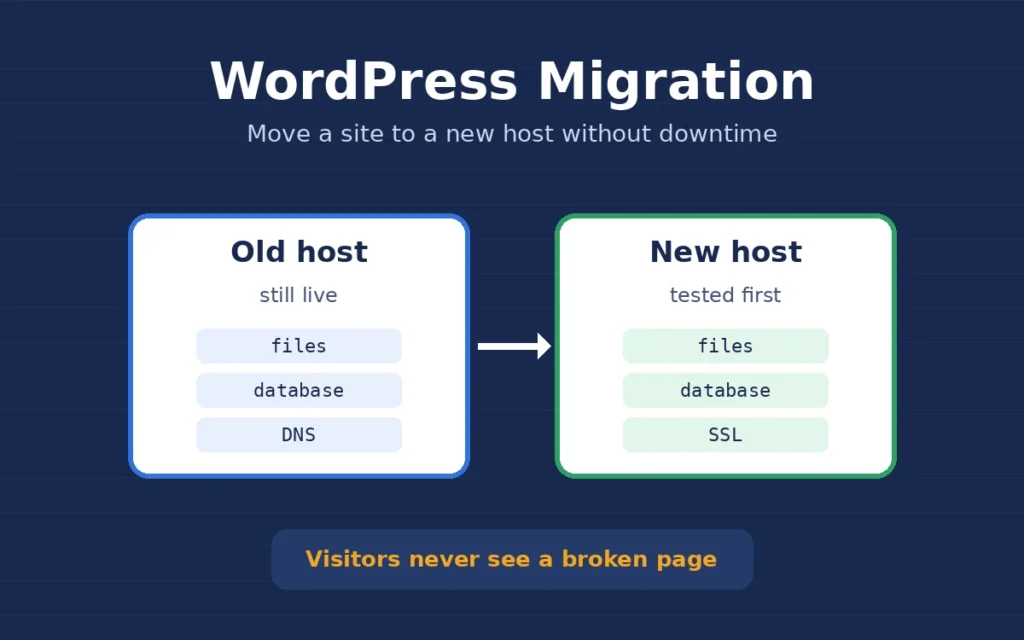
My rule is simple: the old site stays live and untouched until the new copy is fully tested. Visitors keep using the old host while I work, so they never see a half-moved site.
My WordPress migration checklist
Before I touch anything, I take a full backup of the files and the database and store it off the server. I explained how I make backups I can actually restore in my post on WordPress backups that actually restore. Then I work through the same checklist every time.
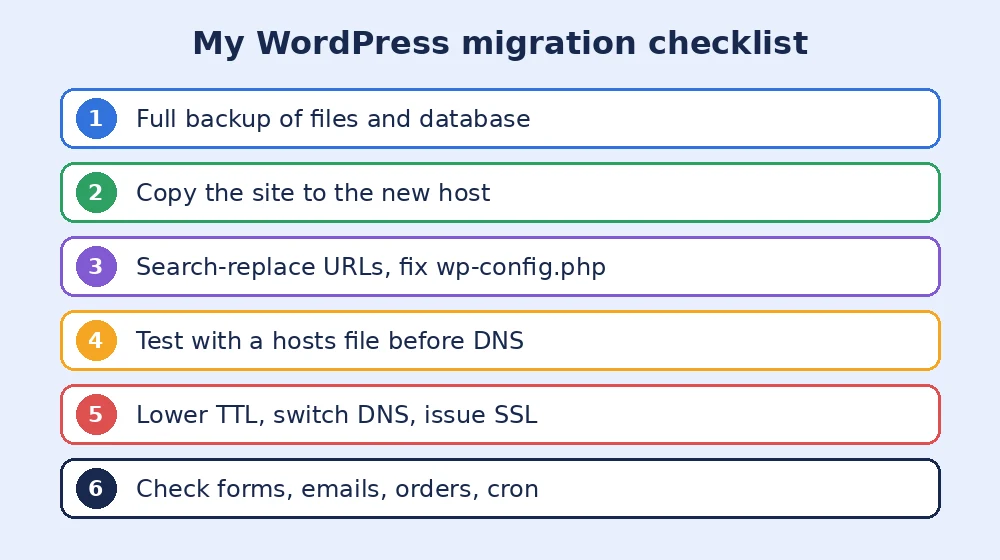
- Match the server: I set the same or a newer supported PHP version on the new host, with enough memory and the same PHP extensions.
- Copy files and database: for most sites I use a migration plugin or a manual copy of
wp-contentplus a database export. For large sites I compress the files on the server first, so the transfer does not time out. - Update wp-config.php: new database name, user, password and host, and I keep the same table prefix as the old site.
- Replace URLs safely: if the domain or folder changes, I run a serialized-safe search-replace with WP-CLI search-replace instead of a plain SQL query, because a plain replace breaks serialized widget and theme settings.
The official WordPress guide to moving a site covers the manual method in more detail if you want to do it by hand.
Testing the WordPress migration before DNS changes
I never switch DNS just to see if the new copy works. Instead, I edit the hosts file on my own computer so only I see the new server for that domain. Then I browse the site as a visitor and as an admin, and I check:
- Home page, menus, images and fonts load with no mixed-content warnings.
- Login works and permalinks do not return 404 errors. If they do, I save the permalink settings again.
- Contact forms send email, which often needs SMTP on a new host.
- WooCommerce cart, checkout, payment gateway and order emails work end to end.
- Cron tasks and scheduled backups are running on the new server.
If images break after the move, the cause is usually old paths in the database or missing upload folders. I covered those fixes in how I fix broken images after a WordPress migration.
Switching DNS with no downtime
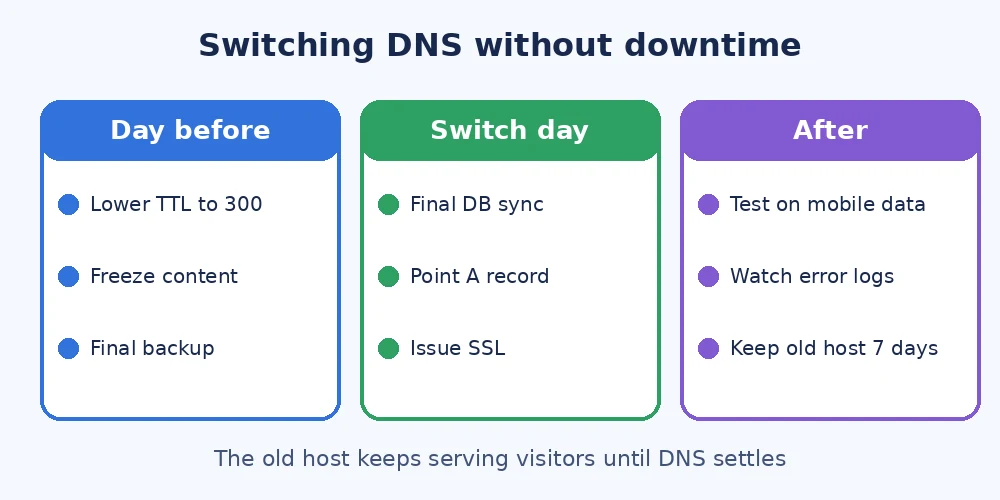
A day before the move, I lower the DNS TTL to about five minutes so the change spreads quickly. On a store, I pick a quiet hour and pause content edits. Right before the switch, I take one final database sync so no new orders or comments are lost.
Then I point the domain’s A record to the new server, issue the SSL certificate on the new host and force HTTPS. While DNS spreads, both servers have the same content, so every visitor still gets a working site whichever server they reach.
After the move: what I check for a week
- I test the site on mobile data, which often uses a different DNS than my office connection.
- I watch the PHP error log and the hosting resource usage for a few days.
- I resubmit the sitemap in Google Search Console and check that the robots settings did not flip to noindex.
- I clear and rebuild the cache, and set up caching and backups again on the new host.
- I keep the old hosting account active for about seven days before cancelling it, just in case.
If you are planning a WordPress migration to a faster host or a new domain and want it done without losing orders, emails or rankings, I can handle the move for you, test everything on the new server first and switch it over with no downtime.